Video to MP3
MP4, MOV, WebM, MKV and others
Take the sound from a video and save it as MP3.
The audio is extracted from your video in the browser; the video is not uploaded. Learn more
Separate your video’s soundtrack and save it as MP3, WAV, AAC, OGG or M4A. Trim a specific clip and adjust the volume — all in your browser, without sending files.
MP4, MOV, WEBM, MKV, M4V or TS
Each task has its own page, with the step by step, tips and the limits of what it does.
MP4, MOV, WebM, MKV and others
Take the sound from a video and save it as MP3.
WAV, M4A and OGG
Extract the video’s sound as WAV, M4A or OGG.
Extract only the voice into a small file, trim a clip or raise the volume.
The extractor separates the sound of a video and creates an audio file for you to listen to, share or use in other work, without changing the original video.
1. Select the video. Drag the file to the marked area or click to choose it. Use the player to check the content and find the part you want to use.
2. Choose everything or a clip. To extract only a part, turn on “Trim clip” and fill in the start and end in hours:minutes:seconds. Leave trimming off to use all the audio.
3. Set the output. Choose the format, the available quality and the audio channels. If the sound is low, try the volume gain; larger increases can distort a recording that is already loud.
4. Extract and listen. Click “Extract audio”, wait and check the result in the player. Use “Download audio” to save it. The video must contain an audio track.
Pulls the audio track out of a video and saves it as a sound file, useful for podcasts, classes and music.
You recorded a 1-hour class on video and want to listen to it on the bus. You upload the video, choose MP3 and extract. You listen to a preview to check it and download the audio, which takes a fraction of the video’s size and plays on any device.
Os pontos de clique estão numerados. Toque na imagem para vê-la em tamanho original. As demais telas, passo a passo, estão no guia “Como funciona”.
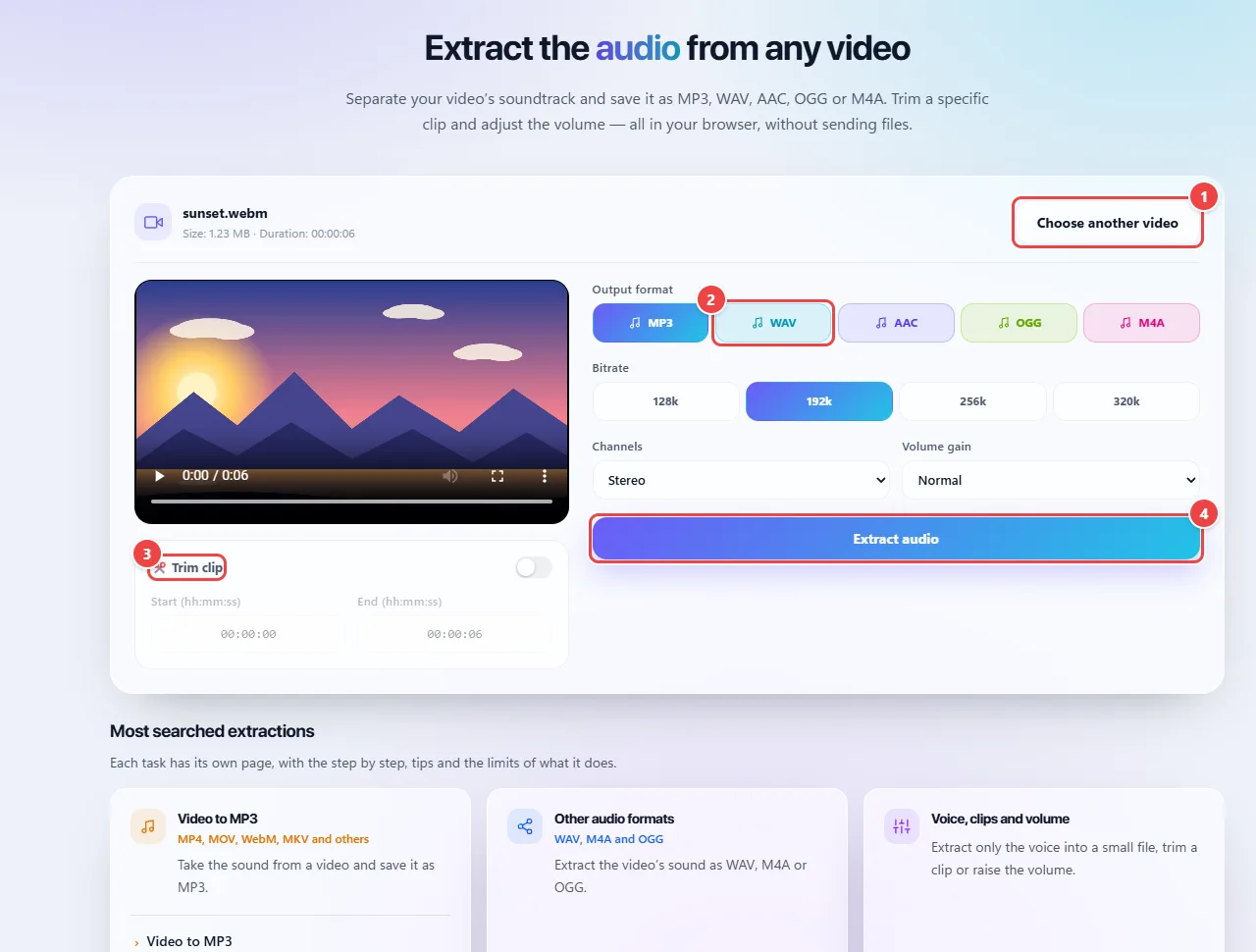
The video is read in the browser and the audio track is separated and saved to a new file. The audio is saved in the format you choose and, if you like, only for the clip you define with the trim (start and end).
Lossless formats (WAV and FLAC) preserve the track’s quality, with bigger files. Lossy formats (MP3, AAC) produce much smaller files, with compression that is usually imperceptible in speech.
The processing uses the device’s memory. Very long or heavy videos can take longer or run out of memory on simple phones.
Read the full guide: real-world use cases, tips and limits →
Privacy: This tool runs entirely in your browser: your files and data are not sent to any WebFaz server. Learn more.