How to extract the audio from a video and save it as MP3, WAV, AAC, OGG or M4A
A class, a lecture or an interview recorded on video can become a light sound file to listen to later. This guide shows how to choose the format and quality, trim only the clip you want and download the audio, without sending the video to a server.
Guide written by Marcelo Amantino · updated on October 19, 2026 · about us
Where your data is processed
This tool runs entirely in your browser: your files and data are not sent to any WebFaz server.
The video is read in your browser, and the audio track is separated and saved to a new file on your device. Nothing is sent to WebFaz, and the original video is not changed.
See the full list on the Privacy page.
Real-world use cases
Turn a video class into audio to listen to later
Situation: You recorded a 1-hour class and want to listen to it on the bus.
- Drag the video onto the upload area or click to choose it (use “Choose another video” to switch).
- Choose the output format: MP3 is the most compatible, and M4A/AAC is common on Apple devices.
- Choose the bitrate (128k, 192k, 256k or 320k). For speech, medium values are enough.
- Click “Extract audio”, listen to the preview and download the file.
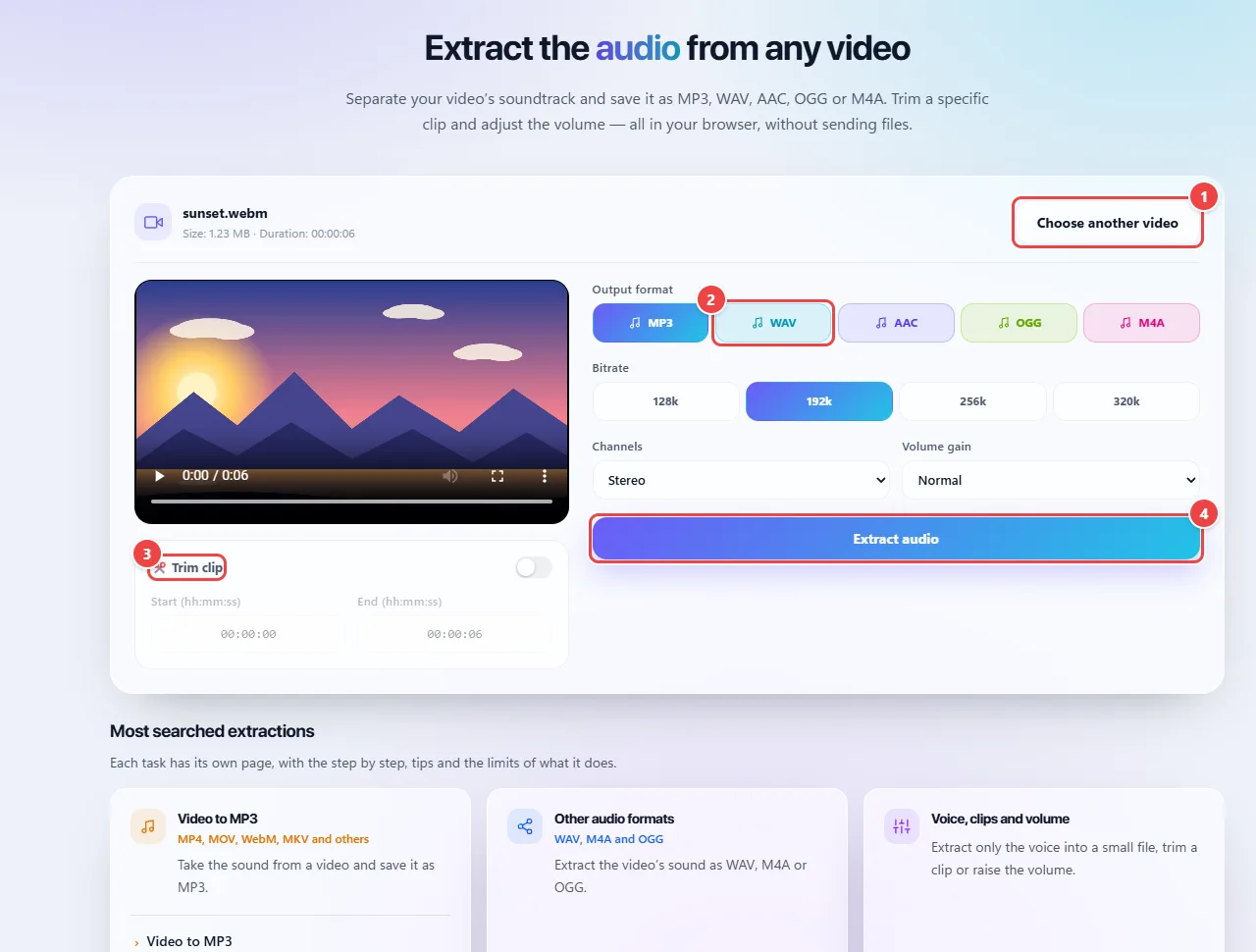
- Point 1: Choose the video to extract the audio from.
- Point 2: Choose the output format and the bitrate.
- Point 3: Optional: trim just the section you want.
- Point 4: Extract audio generates the file in your browser.
Result: An audio file that takes a fraction of the video’s size and plays on any device.
Extract only a clip, with a volume adjustment
Situation: You only want the middle part of a video, louder.
- Turn on “Trim clip” and enter the start and the end in hh:mm:ss (the end must be after the start).
- Under “Volume gain”, choose the adjustment and, under “Channels”, stereo or mono, if you like.
- Extract and check the preview before downloading.
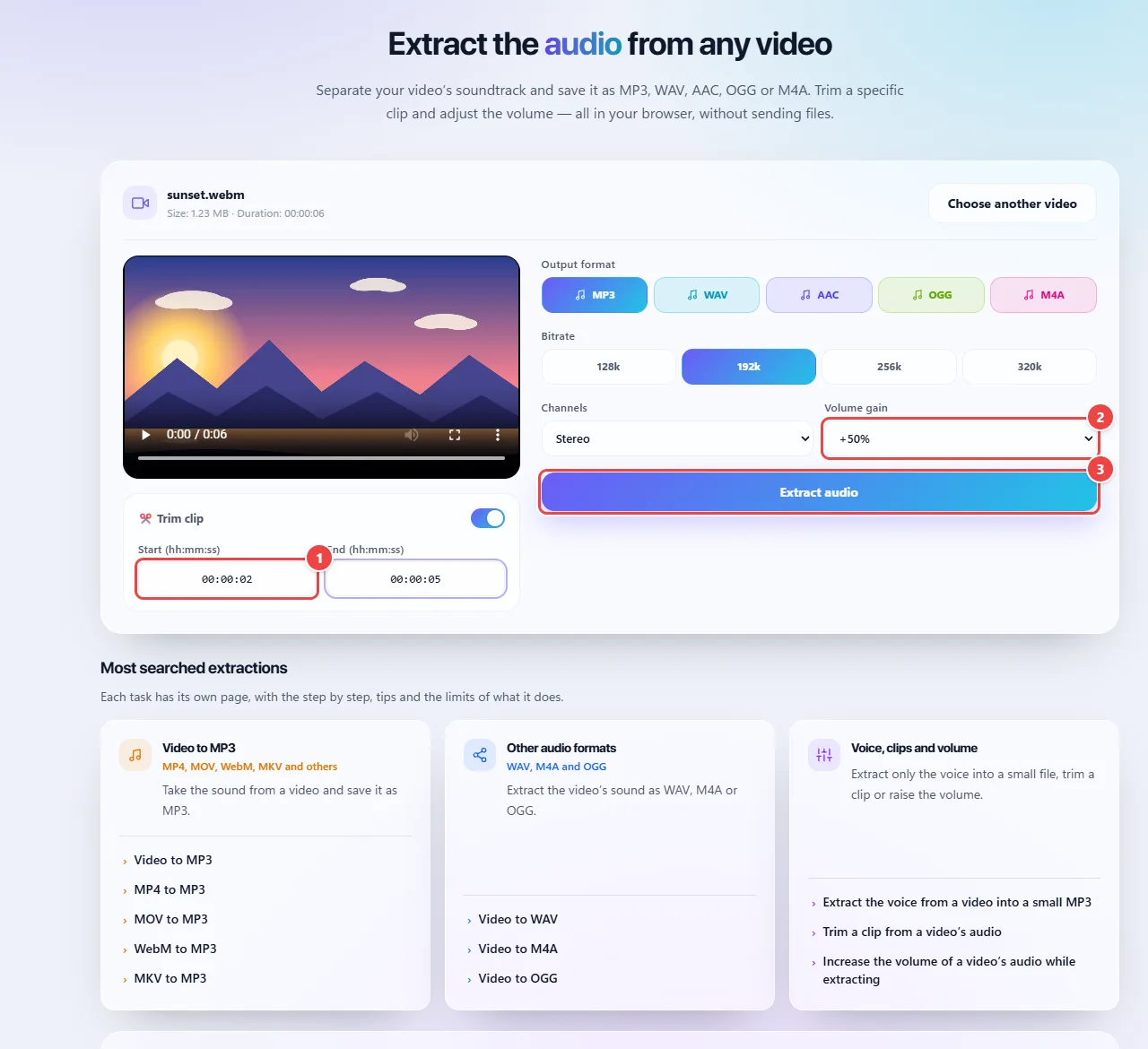
- Point 1: Turn on Trim and enter the start and the end as hh:mm:ss. The end must be after the start.
- Point 2: Adjust the volume gain and, under Channels, choose stereo or mono, if you want.
- Point 3: Extract and check the preview before downloading.
Result: A file with only the chosen clip, at the adjusted volume.
Preserve quality for editing or transcription
Situation: You are going to edit the sound in another program or prepare a meeting’s audio to be transcribed.
- For professional editing, choose a lossless format (WAV), which keeps the track’s quality with bigger files.
- For transcription, extract to MP3 or M4A at medium quality and upload the file to the Transcription app.
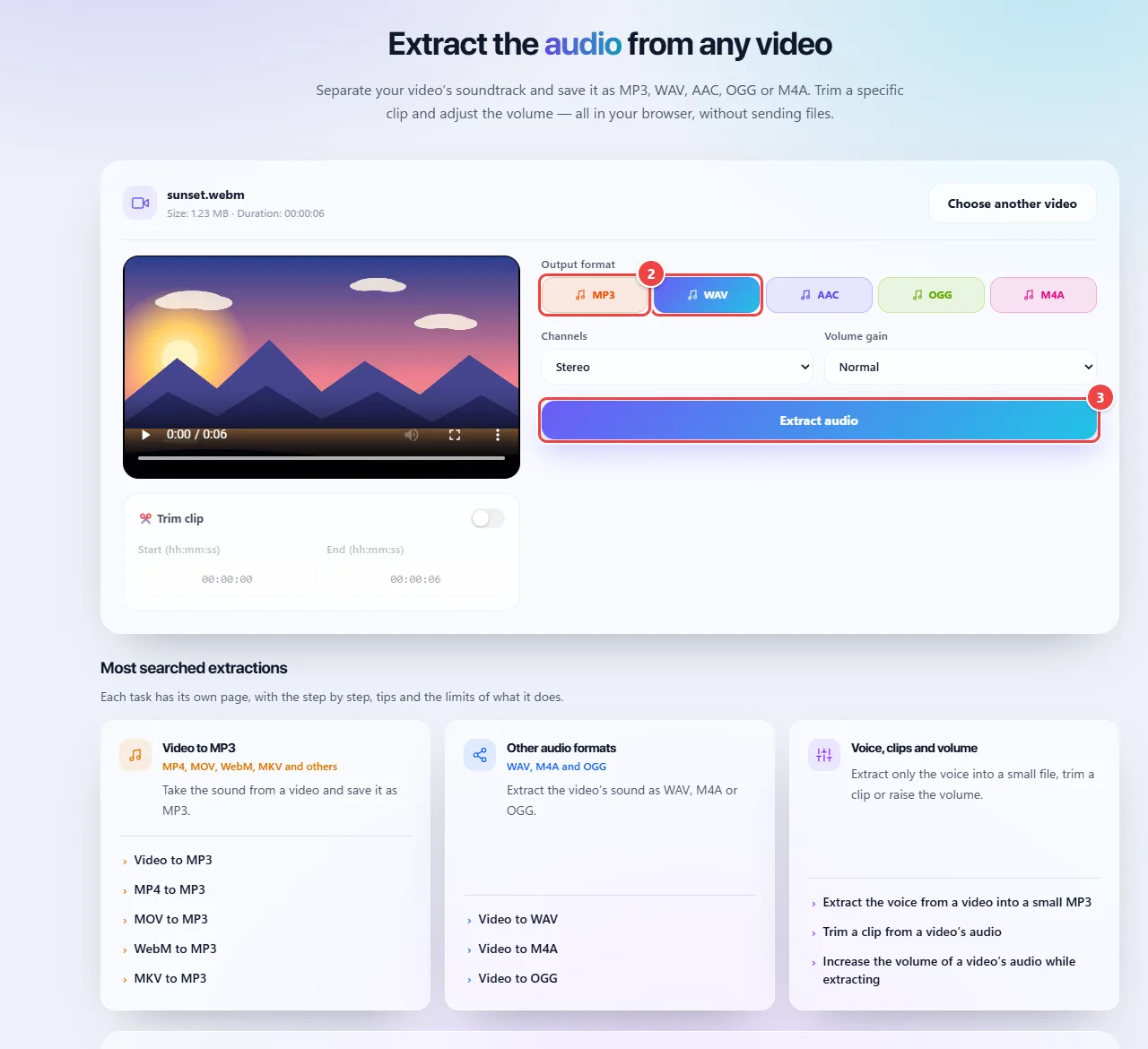
- Point 1: For professional editing, choose WAV: it keeps the track’s quality, with larger files.
- Point 2: For transcription, medium-quality MP3 or M4A is enough. Then send the file to the Transcription app.
- Point 3: Extract, listen to the preview and download.
Result: The audio in the right format for the next step.
Tips for a better result
- For speech, MP3 or M4A at medium quality is enough and the file stays small.
- For professional editing, extract to WAV so you do not lose quality.
- Respect copyright: extract only audio you have the right to use.
Limits, and when this is not the best option
- Audio can only be extracted if the video has a sound track, in a codec the browser recognizes.
- Very heavy videos depend on the device’s memory and can take longer.
- It works with the video formats your browser opens, such as MP4, WEBM and MOV.
Frequently asked questions
- Is the video sent anywhere?
- No, the processing is entirely local.
- Which audio format should I choose?
- MP3 is the most compatible; M4A/AAC is common on Apple devices; WAV keeps the original quality.
- Why was there no sound?
- The video may have no audio track or use a codec the browser does not recognize.
- Can I extract only a clip?
- Yes. Turn on trimming and enter the start and the end.