How to extract the images from a PDF, Word, PowerPoint or ZIP
When the original file of the photos has been lost, the images are still inside the document. This guide shows how to upload a PDF, DOCX, PPTX, XLSX, OpenDocument file or ZIP, see all the images found and download them with their original quality.
Guide written by Marcelo Amantino · updated on October 19, 2026 · about us
Where your data is processed
This tool runs entirely in your browser: your files and data are not sent to any WebFaz server.
The document is opened in your browser and the images are copied out of it. Nothing is sent to WebFaz. Password-protected files cannot be read.
See the full list on the Privacy page.
Real-world use cases
Recover the photos from a presentation
Situation: You have a 40-slide PPTX and need the photos in it, but you lost the original files.
- Open the tool and drag the file onto the upload area (or click to choose). You can upload up to 20 documents at once.
- Wait for the reading: the images appear as thumbnails, with the format and the source file.
- Use the format filter if you want to see only one type (for example, PNG).
- Click “Download image” on a thumbnail or “Download all (.ZIP)” to take everything at once.
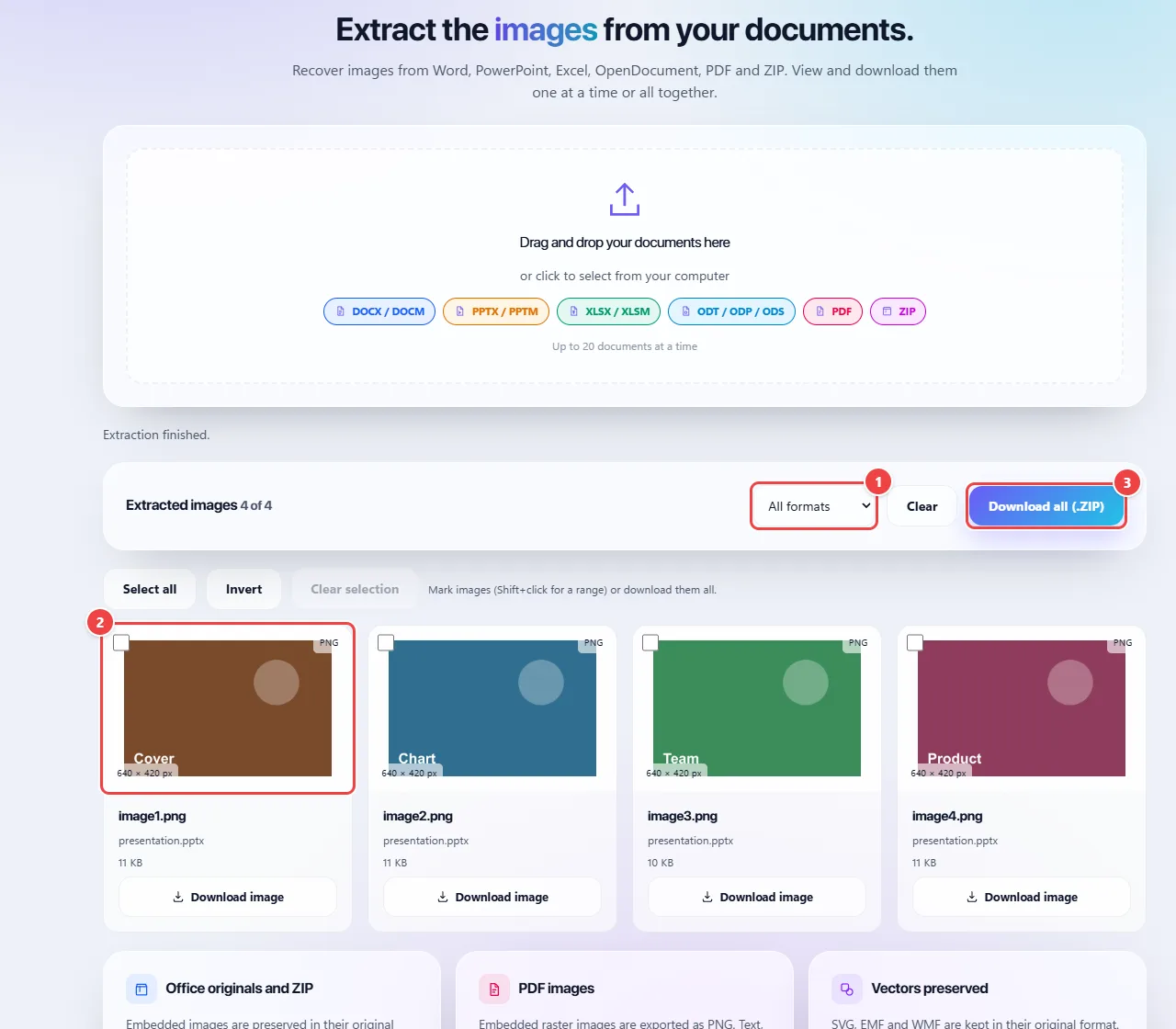
- Point 1: Filter by format, if you want to see only one type (for example, PNG).
- Point 2: Each thumbnail shows the format and the source file. Click to enlarge or download an image.
- Point 3: Download all (.ZIP) takes them all at once; you can also check just a few.
Result: The document’s images, in the same format and with the same quality they were inserted with.
Pull the images out of a PDF or Word report
Situation: You want to reuse the charts and photos from a report.
- Upload the PDF, the DOCX or the OpenDocument file.
- Check the images found in the gallery. In PDFs, the images embedded in the pages come out.
- Download only the ones you want, one by one.
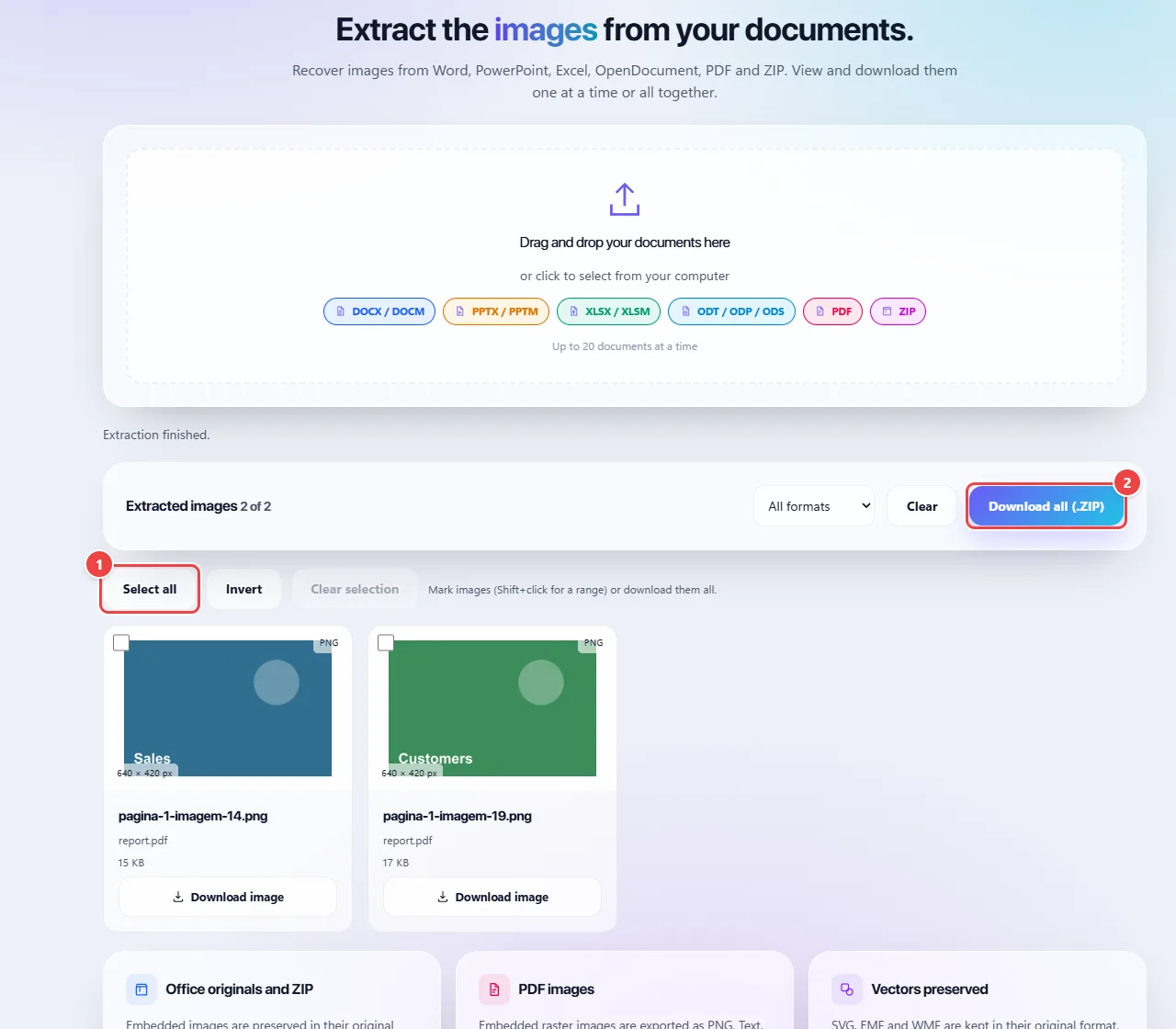
- Point 1: In PDFs, the images embedded in the pages come out. Check the ones you want, or use Select all and Invert.
- Point 2: Download what you checked or all of them in a ZIP.
Result: The report’s images, ready to use in another document.
See what is inside a ZIP
Situation: You received a ZIP package and want to know which images it contains before unpacking everything.
- Upload the ZIP.
- See the gallery with the package’s images, each one showing its source file.
- Download only what you want or all of them in a new ZIP.
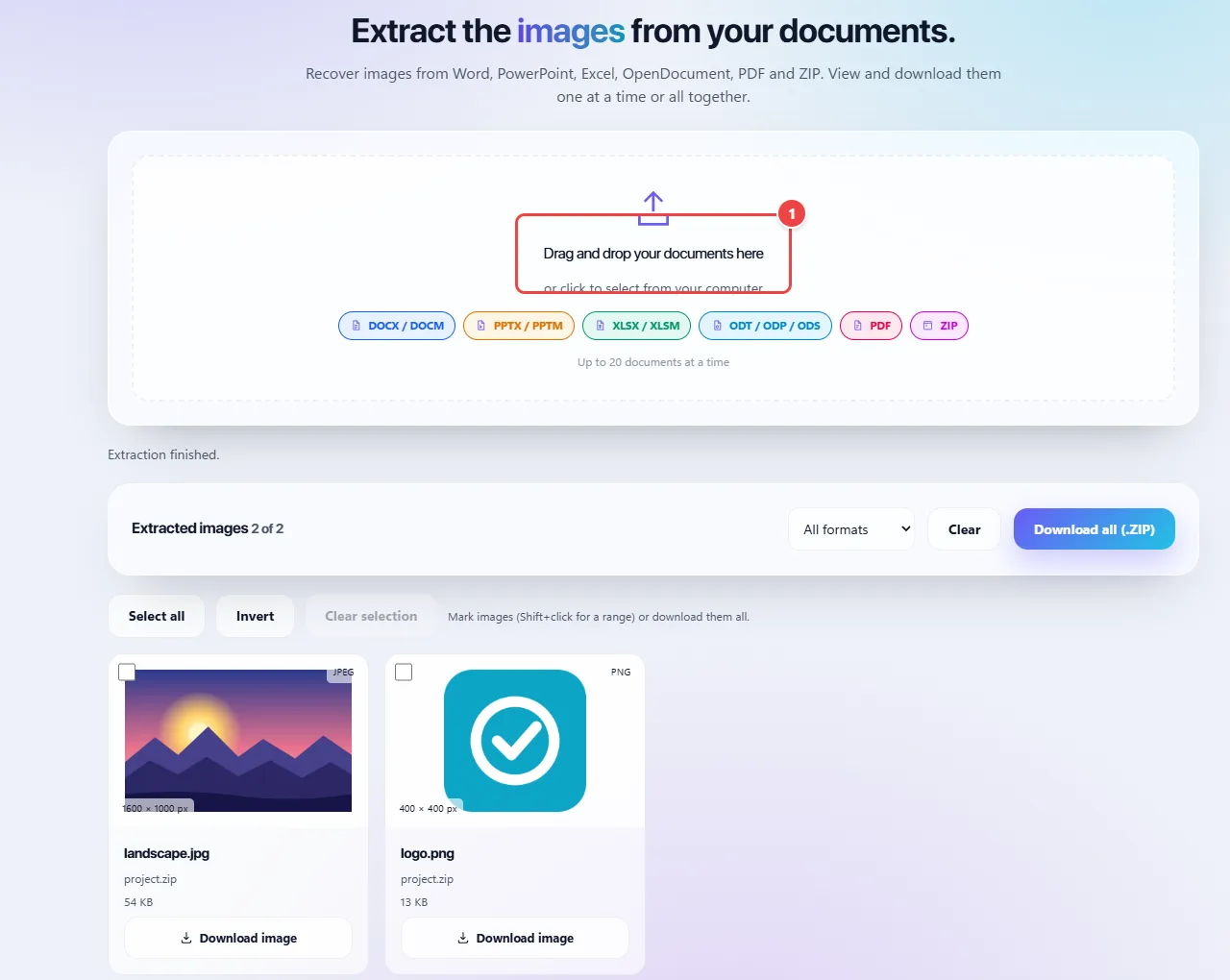
- Upload Word, PowerPoint, Excel, OpenDocument, PDF or ZIP (up to 20 documents). Everything is read in the browser.
Result: Only the images you chose, without opening the whole package.
Tips for a better result
- If you want the whole PDF page as an image (and not the embedded photos), use the PDF tool to convert pages to JPG.
- To download many at once, use “Download all (.ZIP)”.
- Check the copyright before reusing an image that is not yours.
Limits, and when this is not the best option
- Only embedded images are extracted: in a scanned PDF, each page is a single image.
- Password-protected files cannot be read.
- The tool does not extract text. For text from images and scanned PDFs, use WebFaz OCR.
Frequently asked questions
- Is the original quality kept?
- Yes. The images are copied as they are in the file, with no recompression.
- Is my document sent to a server?
- No, everything runs in the browser.
- Why did the tool not find images in my PDF?
- The PDF may have only text and vector drawings, which are not embedded images. In scanned PDFs, each page comes out as a single image.
- Can I download them all at once?
- Yes, in a ZIP file.