How to print an image on several sheets and assemble a poster
An A4 printer can produce the parts of a large poster. Set the size, check the split and use the guides to assemble it, without sending your image to a server.
Guide written by Marcelo Amantino · updated on October 22, 2026 · about us
Where your data is processed
This tool runs entirely in your browser: your files and data are not sent to any WebFaz server.
The browser opens the image and calculates the parts in millimeters. The PDF is built sheet by sheet, without creating a canvas the size of the whole poster. The export uses up to 150 PPI and depends on the pixels available in the original. No file is uploaded; reloading the page discards the current work.
See the full list on the Privacy page.
Real-world use cases
A 60 cm poster for the living room
Situation: You have artwork and an A4 printer, but you need a width larger than one sheet.
- Open the image or try the example.
- Choose In centimeters and enter 60 for the width. The height follows the proportion.
- Choose A4 and automatic orientation. Check the size and the number of sheets.
- Download the PDF. When printing, choose actual size / 100%, without fitting to the page.
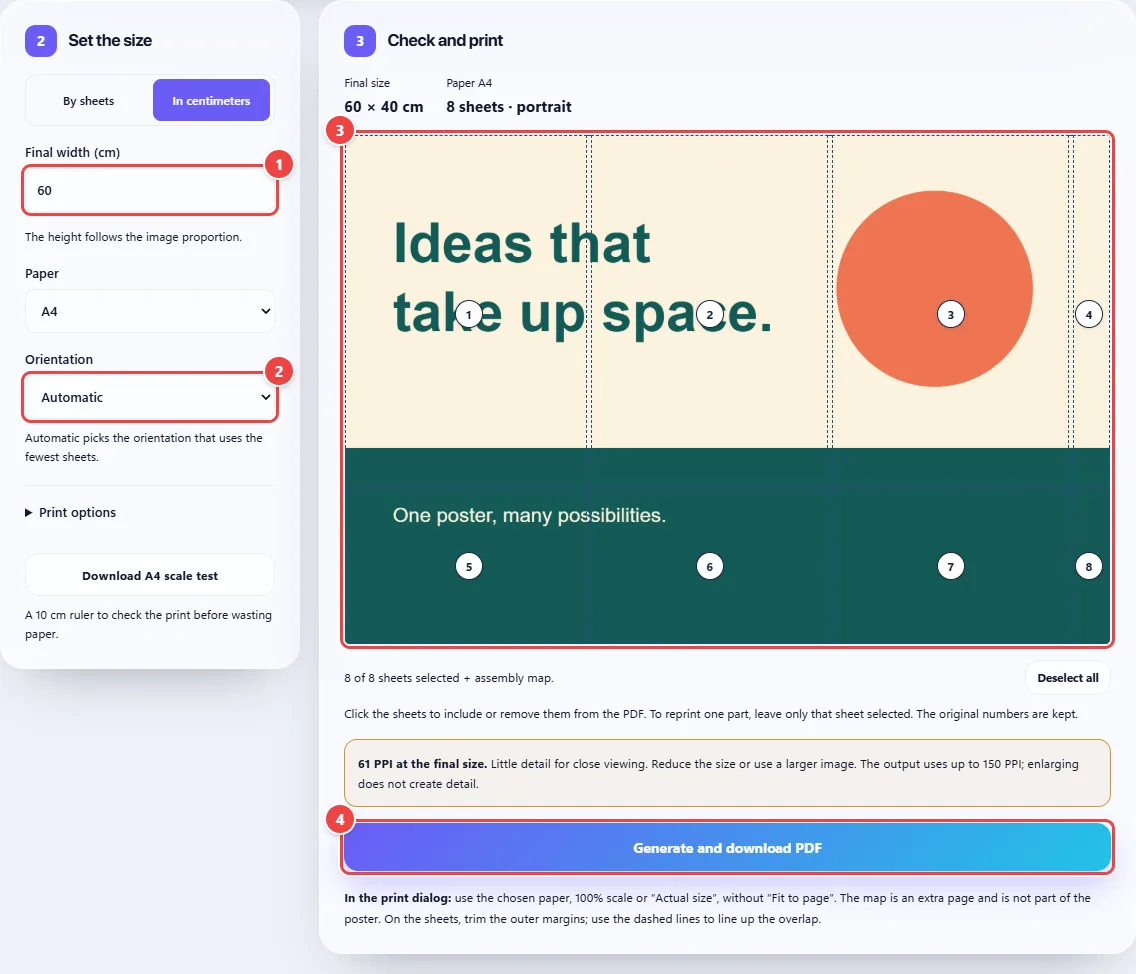
- Point 1: Enter the width in centimeters; the height follows the proportion.
- Point 2: Automatic picks the orientation that needs the least paper.
- Point 3: Each number identifies one sheet of the poster.
- Point 4: Download the PDF to print at 100% scale.
Result: An optional map and numbered sheets to assemble the poster at the width you chose.
Make the most of four sheets of paper
Situation: You want to enlarge an image using exactly two columns and two rows.
- Choose By sheets.
- Enter two columns and two rows.
- Check the grid: the app generates four sheets, keeping the image proportion with blank space when needed.
- Download the A4 test and measure the 10 cm ruler before printing the poster.
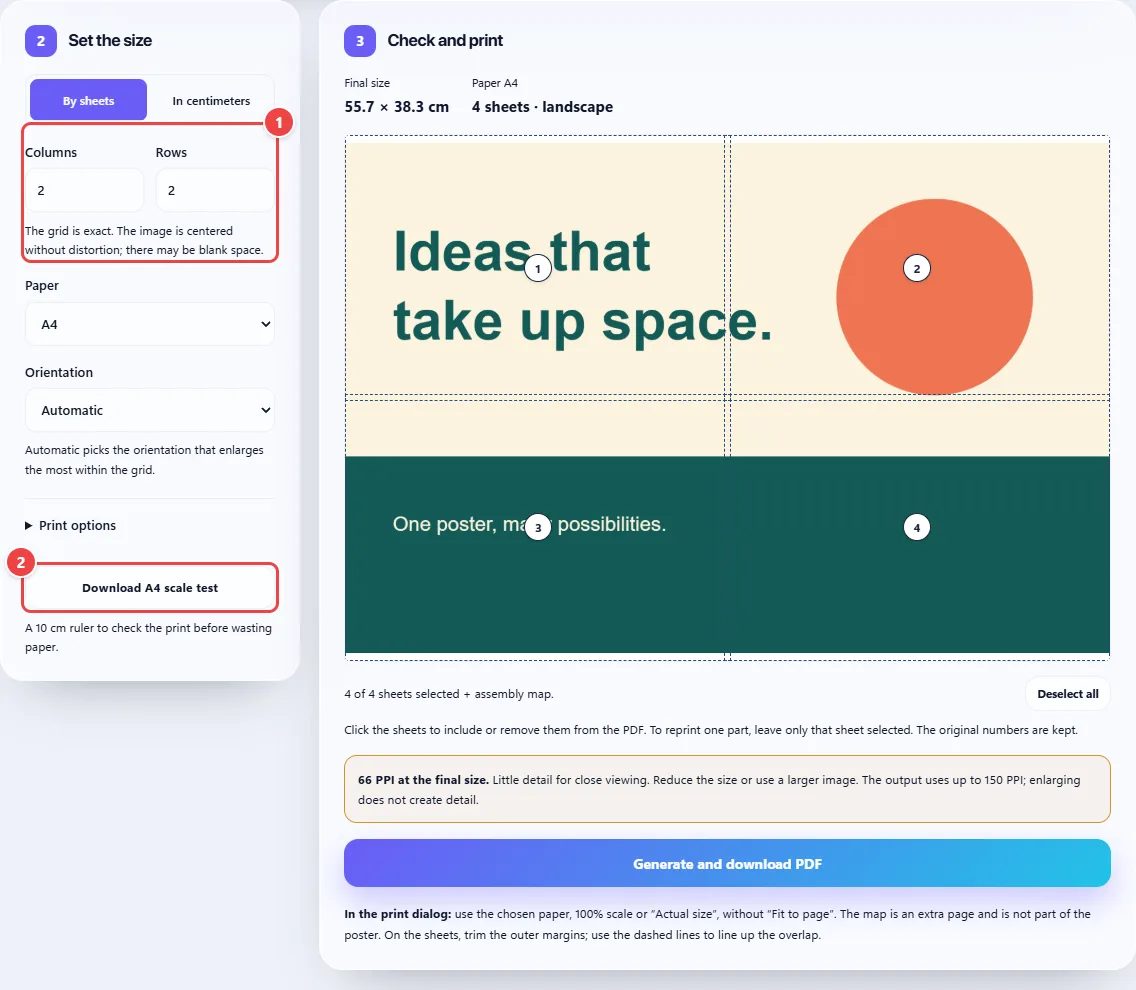
- Point 1: Choose the exact number of rows and columns.
- Point 2: Download a 10 cm ruler to check the scale on the printout.
Result: A four-sheet layout, with the image centered and without distortion.
Reprint a part that was damaged
Situation: A sheet smudged or was cut wrong and you do not want to print everything again.
- Keep the same image and the original measurements.
- Click Deselect all and select only the sheet you need in the preview.
- In the options, turn off the map if you do not need it.
- Download the new PDF and check the sheet number.
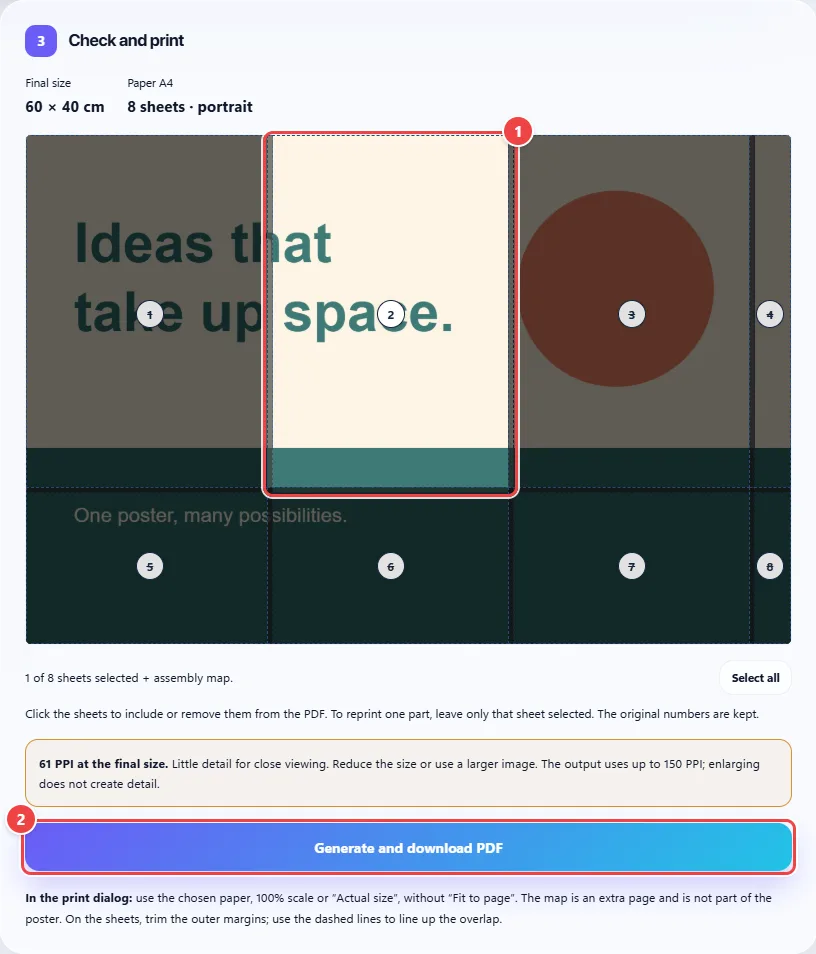
- Point 1: Only this sheet will go in the PDF, plus the map if it is turned on.
- Point 2: Generate the PDF of the selected parts.
Result: Only the selected parts, with the positions and numbers of the original poster.
Tips for a better result
- The map is not part of the poster: use it to check where the sheets go.
- Trim the outer edges and line up the repeated strip in the overlap. The dashed lines show that area.
- How it looks on screen does not guarantee sharpness on paper; print a test and look at it from the distance you will use.
Limits, and when this is not the best option
- Up to 40 MB and 40 megapixels for the image, 100 sheets and 300 cm per side.
- Up to 150 PPI in the export. Small images do not gain detail when enlarged.
- SVG becomes an image and GIF uses one frame; this app does not keep vectors or animations.
- There is no saved project: keep the image and note the measurements if you want to redo it later.
Frequently asked questions
- Can I use A3 or Letter?
- Yes. Select the same paper in the app and in the print dialog.
- Do I need to print borderless?
- No. The app reserves a configurable margin of 8 to 25 mm. Check whether your printer can print inside it.