How to extract, edit, convert and translate subtitles (SRT, VTT, ASS)
Subtitles come in many formats, and each program or website accepts one. This guide shows how to extract the subtitles that are already inside a video, fix text and times with the video alongside, convert between SRT, VTT, ASS and other formats and, if you like, translate with AI, knowing exactly what leaves your device.
Guide written by Marcelo Amantino · updated on October 19, 2026 · about us
Where your data is processed
It works locally by default. Only if you turn on the AI feature is the text of the lines, only when you click Translate subtitle sent to Groq.
Extraction, editing and conversion run in your browser: videos, ZIPs and subtitle files are not sent to WebFaz. The only exception is AI translation, which is optional: when you click “Translate subtitle”, only the text of the lines is sent to the WebFaz server and to Groq, and the times and the original subtitle are preserved. Without clicking that button, nothing leaves your device.
See the full list on the Privacy page.
Real-world use cases
Extract the subtitle inside a video
Situation: You have a video (or a ZIP with videos) with embedded subtitles and want the subtitle file separately.
- Open or drag the video or the ZIP. If it is a ZIP, choose the file inside it.
- Select the track or language in the “Subtitle track” list.
- Click “Extract selected track”.
- Choose the output format and copy or download the result.
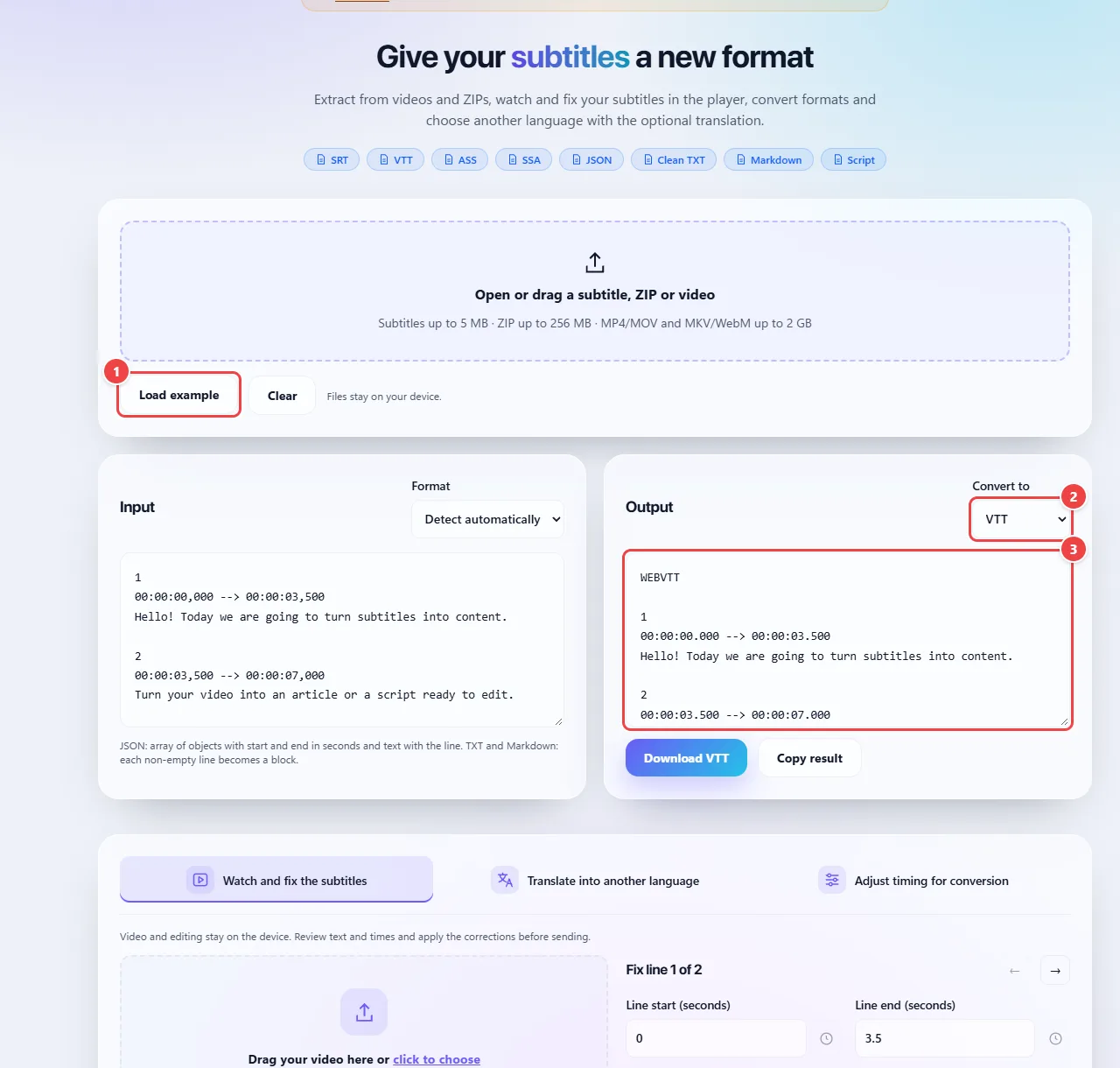
- Point 1: Open a subtitle file (SRT, VTT, ASS, SSA, JSON), a ZIP or a video, or load the example.
- Point 2: Choose the output format: SRT, VTT, ASS, SSA, JSON, clean TXT, Markdown and others.
- Point 3: The result appears here automatically, ready to download or copy. Nothing leaves your browser, except the optional translation.
Result: The subtitle as text, ready to edit or convert. Extraction works with text tracks from MP4/MOV and MKV/WebM files.
Convert and fix a subtitle’s timing
Situation: An SRT subtitle is not accepted by the destination website, or is early or late relative to the video.
- Open the subtitle file (or paste the content) and choose the format under “Convert to”.
- If the subtitle is out of sync, use the time adjustment in seconds: positive values delay and negative ones advance.
- Open a reference video in the player, click a line to jump to the passage and fix text or times.
- Click “Apply corrections” before downloading the result.
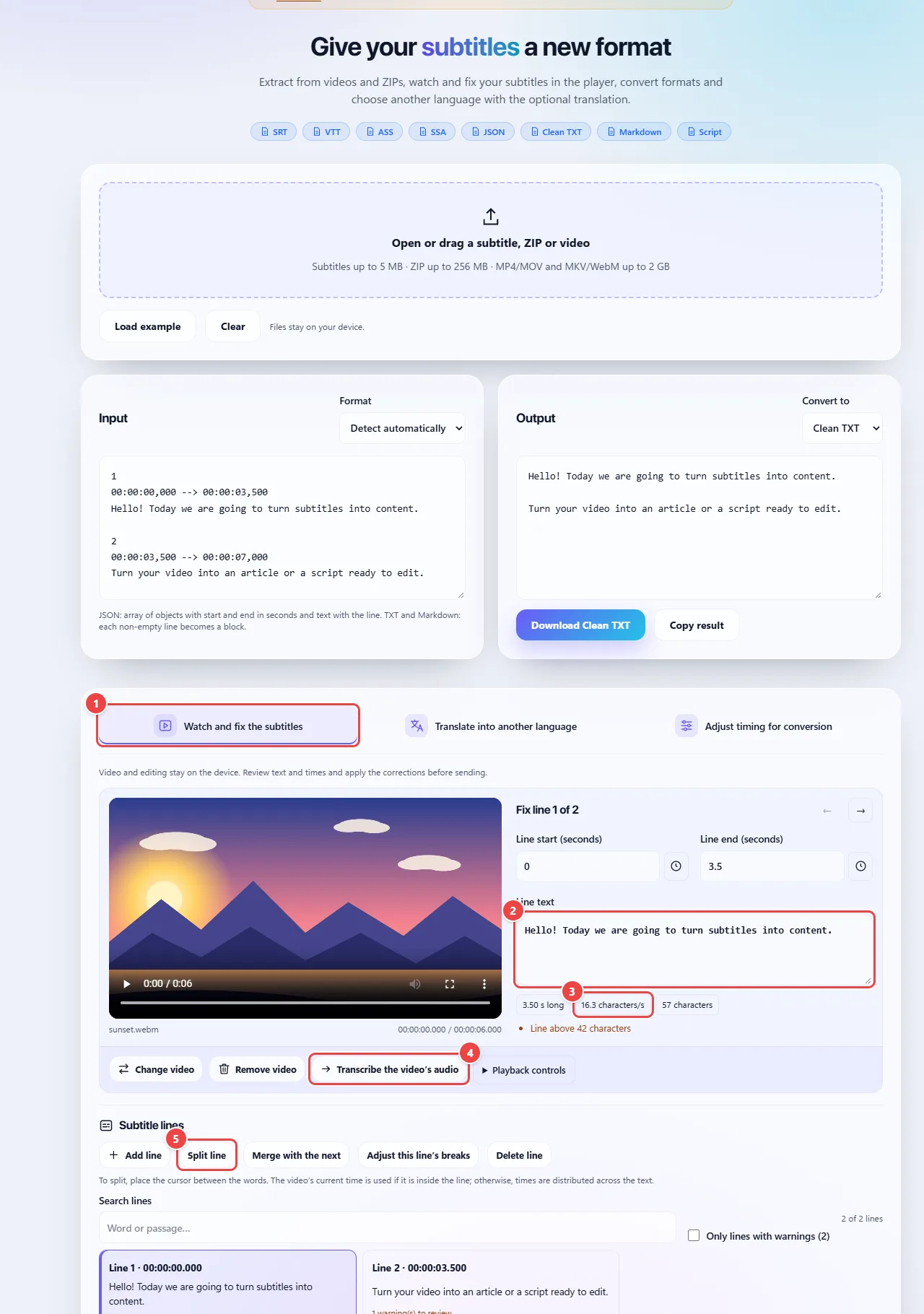
- Point 1: Load the video next to the subtitles. It stays on your device.
- Point 2: Edit the text of each line and set the start and end in seconds (the clock buttons mark the video’s current time).
- Point 3: The reading review shows the duration, the characters per second and warns when a line goes over the limit (42 characters, adjustable).
- Point 4: No subtitles? Transcribe the video’s audio takes the video to the Transcription app, which generates the text with AI.
- Point 5: Add, split, merge or delete lines, and adjust the line breaks of each one.
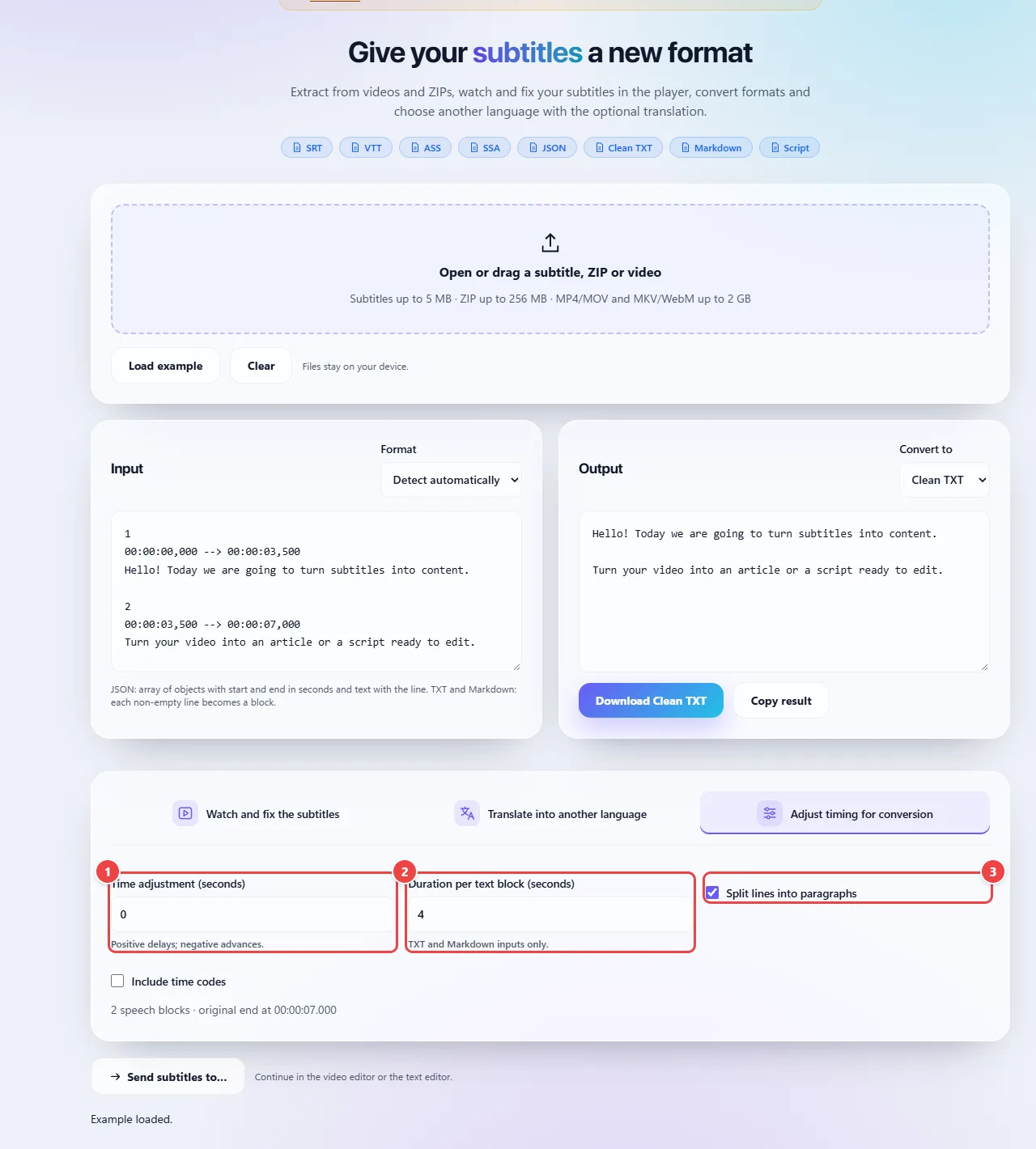
- Point 1: Shift all the lines forward or backward, in seconds, to fix subtitles that are early or late.
- Point 2: Set the duration of each block when the text comes without timings (such as TXT).
- Point 3: Option to split the lines into paragraphs in the text output.
Result: A subtitle in the right format and synced with the video.
Turn the subtitle into an article or script
Situation: You have a video’s lines and want to use them as text, without the time codes.
- Open the subtitle and choose Markdown (for an article) or Script (each line in a numbered block).
- Set the article title, if applicable, and decide whether you want to include the time codes.
- Split the lines into paragraphs, if you prefer.
- Copy or download the text and review the language before publishing.
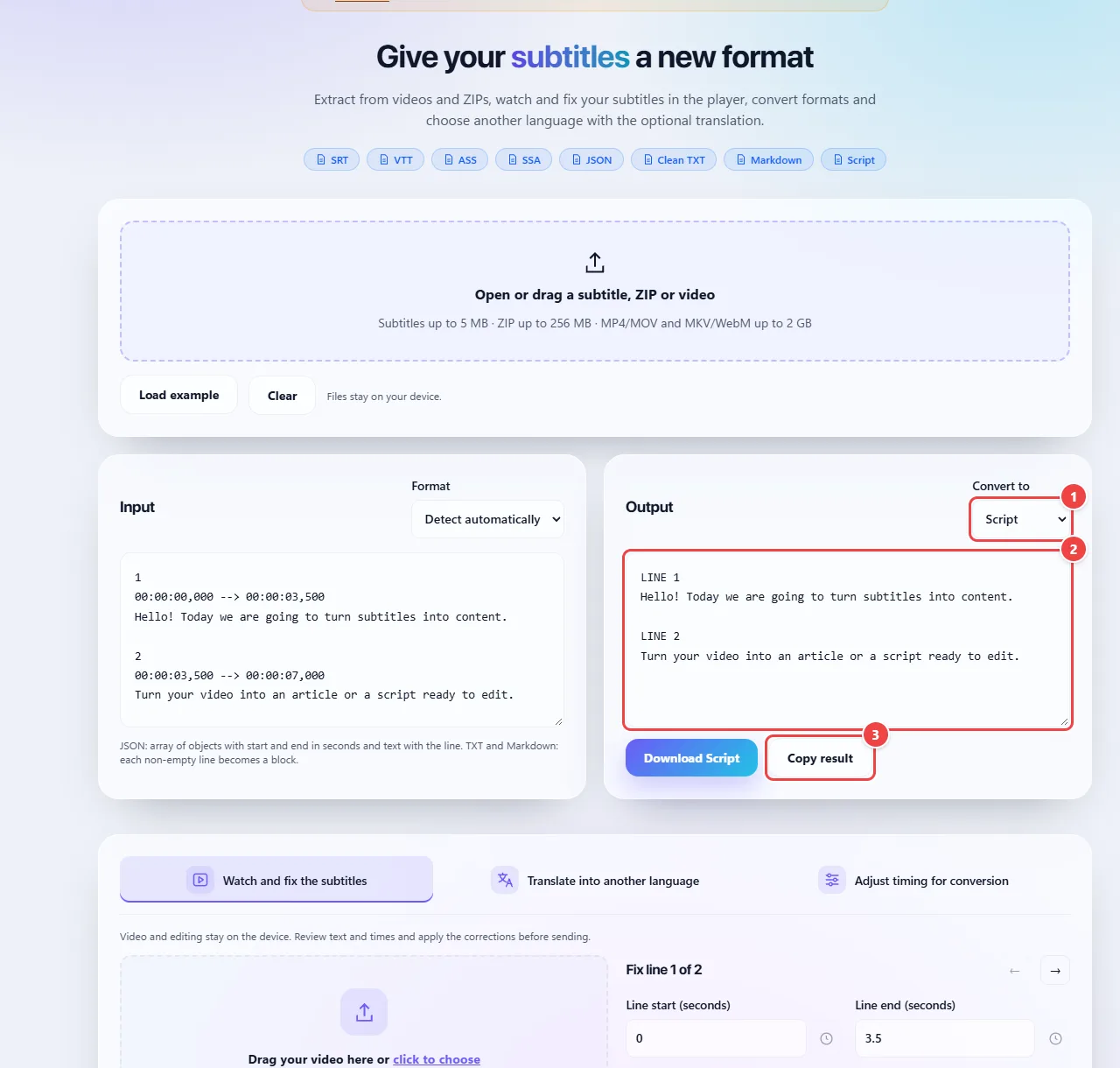
- Point 1: Choose Markdown for an article, or Script for each line in a numbered block. The title and time code options appear alongside.
- Point 2: The text comes out clean, with no styles or time codes (unless you ask for them). Review the language before publishing.
- Point 3: Copy the text or download the file.
Result: A clean text, without style markup, which you can edit and publish.
Translate a subtitle into another language
Situation: You have the subtitle in one language and need it in another.
- Open the subtitle and choose the original language (or leave it on automatic detection).
- Choose the output language, different from the original.
- Click “Translate subtitle”: only the text of the lines is sent to the AI service.
- Review the translation, fix whatever is needed and download in the format you want.
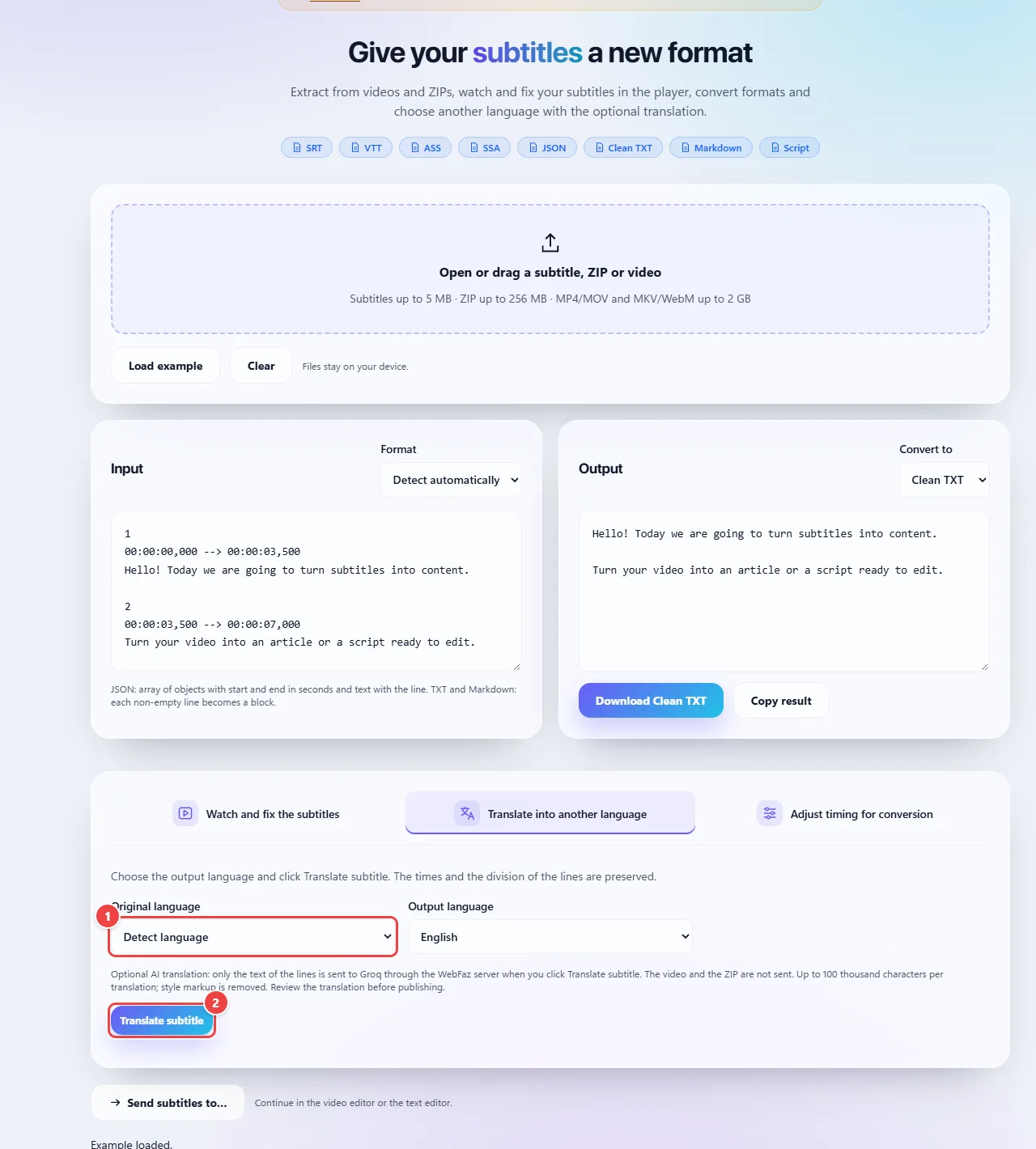
- Point 1: Choose the original language (or detect) and the output language among nine options.
- Point 2: The timings and the division of the lines are preserved. Review the translation before using it.
Result: A translated subtitle, with the same times as the original, which you reviewed before using.
Tips for a better result
- SRT is the most universal format; use ASS or SSA when you need styles such as font, color and position.
- Always review AI translation: proper names, slang and technical terms usually need adjusting.
- In the player, reduce the speed and repeat the selected line to check difficult passages.
- Use the search and the warnings filter to find lines that are too long, too fast or with bad line breaks.
- To create a subtitle from scratch, use “Add line”: the start uses the video’s current time.
Limits, and when this is not the best option
- The app does not download subtitles from links and does not transcribe the audio. To turn speech into text, use WebFaz Transcription.
- Image-based (bitmap) subtitles or those burned into the video’s picture cannot be extracted as text; they require OCR.
- When importing ASS or SSA, only lines and times are kept; the original’s styles, effects and drawings are discarded, and export uses a single basic style.
- When going back from clean text to subtitles, the times are estimated. VTT-specific styles and positions are not preserved in the conversion.
Frequently asked questions
- Which subtitle format should I use?
- SRT is the most accepted by players and websites. VTT is the standard for the web. ASS and SSA allow advanced styles. JSON makes it easy to use the lines in other systems.
- How do I sync an early or late subtitle?
- Use the time adjustment in seconds. Positive values delay the subtitle and negative ones advance it.
- Can I use subtitles downloaded from YouTube?
- Yes, as long as you export the file and open it here. The app does not download subtitles directly from links.
- Does the translation send my video?
- No. Only the text of the lines is sent, and only when you click “Translate subtitle”. Videos and ZIPs stay on your device.