Your SVGs and DXFs are cleaned in the browser; nothing is sent. Learn more

Make your vector files lighter

Remove metadata and hidden elements, adjust units and download a clean SVG.

SVGDXF → SVG
Your file, with no excess
100%

Clean and export

96 DPI: 1 mm = 3.7795 px. Adjusts the dimensions and preserves the coordinate space.

Conservative cleaning

Preserves paths and referenced definitions. Removes original metadata, comments and active content; keeps the WebFaz signature in the file. It does not simplify SVG curves or delete shapes just because they are outside the page.

Cutting and manufacturing

Check the scale, closed outlines and duplicate lines in the machine’s software. SVG is 2D; 3D printing requires modeling and slicing afterwards.

DWG files

Export as ASCII DXF in your CAD program. Reading is limited to the compatible 2D geometry of the Model; partial conversions are flagged.

About Vector Cleaner

Cleans SVGs by removing metadata and hidden elements, converts ASCII DXF into 2D vectors and adjusts units between millimeters and pixels.

What this vector cleaner does

It makes the SVG light, safe and with the right dimensions for the cutting machine or the website. The features that stand out:

  • Removes what an SVG can hide

    Scripts, animations, embedded images, links and external resources are removed for safety, and the file is never executed.

  • Strips the weight the editor leaves behind

    Metadata, editor attributes (such as inkscape: and sodipodi:), data-* attributes and comments leave the file, along with hidden elements.

  • Dimensions in the right unit

    Convert width and height between millimeters and pixels by entering the DPI (from 1 to 2,400). At 96 DPI, 96 px equal 25.4 mm.

  • Shows how much you saved

    The summary gives the original size, the size of the clean SVG, the percentage of reduction and how many items were removed.

  • Converts 2D ASCII DXF to SVG

    Open a simple DXF, choose the source unit (millimeters, pixels or inches) and download the vector.

  • Preview with zoom before downloading

    Check the drawing after cleaning, because removing elements can change files that depend on external styles.

A practical example

An SVG exported from Inkscape for a cutting machine arrives with dozens of “inkscape:” and “sodipodi:” attributes, a metadata block and comments. You upload the file, tick the removal of metadata and hidden elements, choose millimeters as the final unit and check the preview. The new SVG has only the drawing, with the dimensions in the unit the cutting software expects.

How to use it

  1. Upload the SVG or DXF.
  2. Choose the cleanups and the units.
  3. Check the preview.
  4. Export the SVG.

Limits and cautions

  • DXF conversion covers simple 2D drawings in ASCII format.
  • Removing elements can change files that depend on scripts or external styles.

A ferramenta em uma imagem

Os pontos de clique estão numerados. Toque na imagem para vê-la em tamanho original. As demais telas, passo a passo, estão no guia “Como funciona”.

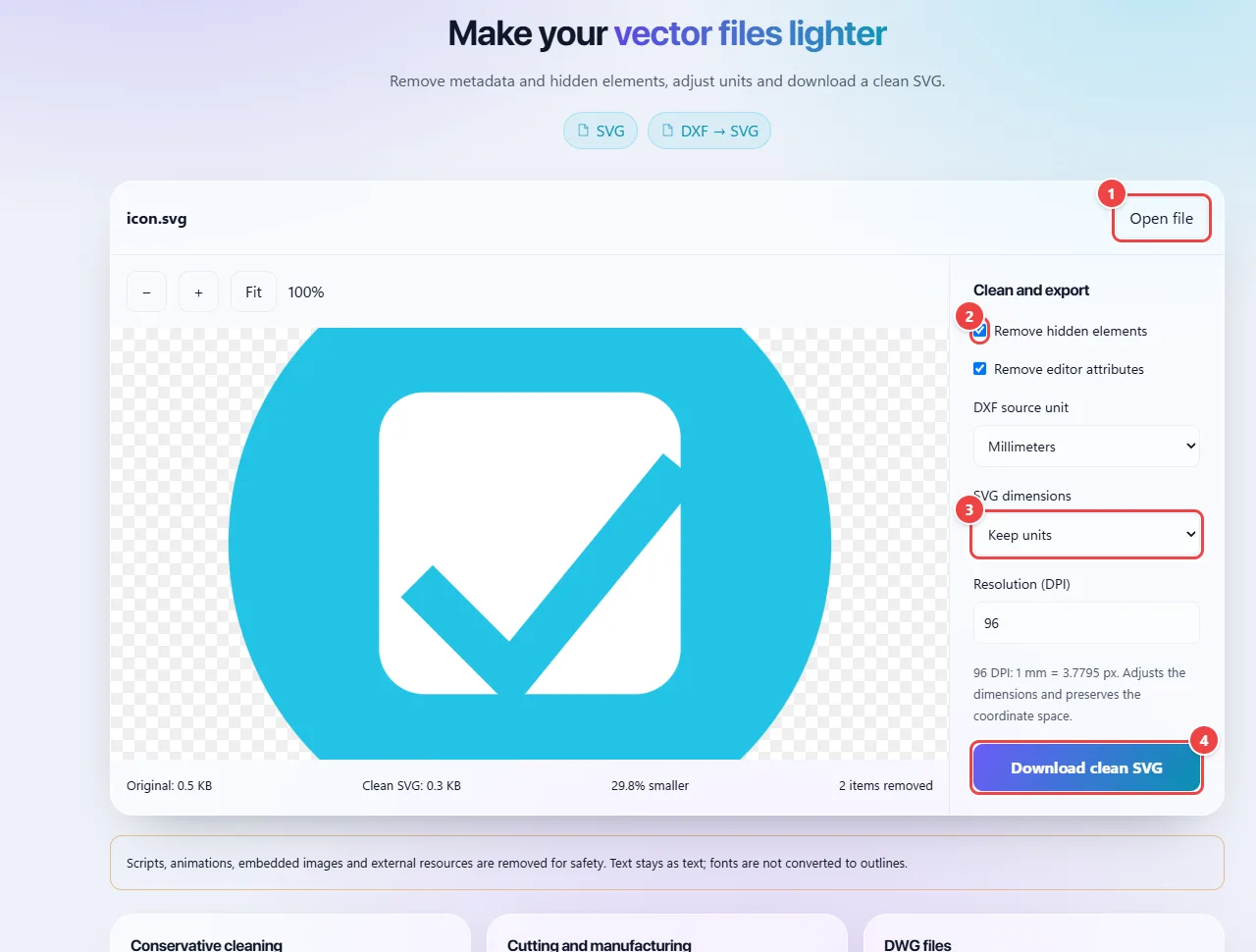
WebFaz Vector Cleanup with an SVG open in the viewing area and, on the right, the Remove hidden elements, Remove editor attributes, unit, dimensions, resolution options and the Download clean SVG button.
Vector cleanup: options and clean file.
  1. Point 1: Open an SVG or a DXF (converted to SVG).
  2. Point 2: Check what to remove: hidden elements and attributes left by editors.
  3. Point 3: Set the output dimensions and resolution.
  4. Point 4: Download the clean SVG.

When to use it

  • Preparing an SVG for laser cutting or a plotter, where the dimensions in millimeters need to be correct.
  • Reducing the weight of an icon or illustration before publishing it on a website.
  • Stripping scripts and external references from an SVG downloaded from the internet before using it.

Tips

  • Check the preview after cleaning: removing elements from a file that depends on external styles can change the drawing.
  • Enter the correct source unit and DPI; that is where the final scale comes from.
  • Text stays as text. If the font is not installed where the file is opened, convert the text to curves in your editor first.

What happens in your browser

The file is read as XML and goes through sanitization (DOMPurify) that removes scripts, animations, embedded images, links and external resources. It is a safeguard: an SVG can carry code, and the tool neither runs nor keeps it.

The metadata it cleans is the metadata element, editor attributes (inkscape:, sodipodi:) and data-* attributes, plus comments. The removal of hidden elements tests the style computed by the browser (display, opacity and visibility) and keeps definitions other elements may still use.

In unit conversion, width and height are converted between millimeters and pixels using the DPI resolution you enter (from 1 to 2,400). For 2D ASCII DXF, the tool reads the entities and generates an SVG; curves are approximated by segments.
Read the full guide: real-world use cases, tips and limits →

Privacy: This tool runs entirely in your browser: your files and data are not sent to any WebFaz server. Learn more.

Perguntas frequentes

Why clean an SVG?
It reduces the size and removes editor data that does not affect the drawing.
Does the tool open DWG?
No. DWG must be saved as ASCII DXF in your CAD program first. To view a DXF, use the site’s CAD tool.
Why do some images disappear from the SVG?
Embedded images are removed for safety, along with scripts and animations. The vector drawing is kept.
What are “hidden elements”?
Objects the drawing does not show, such as those with display none, zero opacity or hidden visibility. They take up space in the file without appearing.
Does the scale change when I convert from pixels to millimeters?
The drawing does not change; the width and height values do, calculated from the DPI you enter. At 96 DPI, 96 px equal 25.4 mm.
Is the file sent to a server?
No. The cleaning and conversion happen in your browser.