How to clean up an SVG and convert DXF to a vector, with units in millimeters
An SVG exported from an editor arrives full of attributes and metadata, and a cutting machine expects dimensions in millimeters. This guide shows how to remove what is not part of the drawing, adjust the units and download a clean SVG, plus how to convert a simple 2D ASCII DXF into a vector.
Guide written by Marcelo Amantino · updated on October 19, 2026 · about us
Where your data is processed
This tool runs entirely in your browser: your files and data are not sent to any WebFaz server.
The file is read and cleaned in your browser and is not sent to WebFaz. Scripts, animations, embedded images and external resources are removed for safety.
See the full list on the Privacy page.
Real-world use cases
Clean up an SVG from an editor
Situation: An Inkscape SVG has dozens of editor attributes, metadata and hidden elements that only add weight.
- Click “Open file” or drag the SVG (up to 10 MB).
- Under “Clean and export”, tick “Remove hidden elements” and “Remove editor attributes”.
- Check the preview and the summary below it: original size, clean size, percentage of reduction and how many items were removed.
- Click “Download clean SVG”.
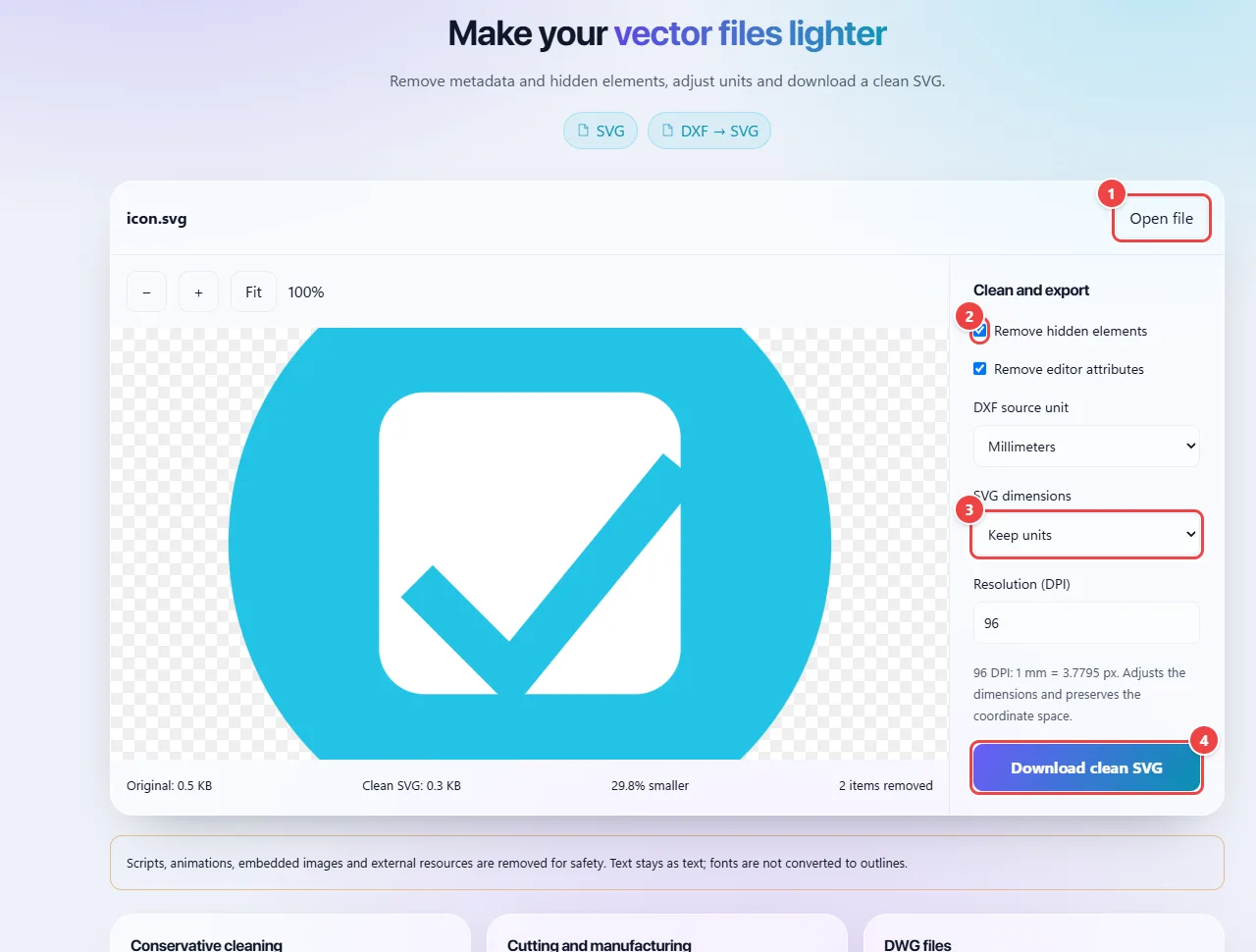
- Point 1: Open an SVG or a DXF (converted to SVG).
- Point 2: Check what to remove: hidden elements and attributes left by editors.
- Point 3: Set the output dimensions and resolution.
- Point 4: Download the clean SVG.
Result: A smaller SVG, with only the drawing.
Prepare the file for laser cutting or a plotter
Situation: The machine’s software expects dimensions in millimeters.
- Under “SVG dimensions”, choose the output unit (keep, pixels or millimeters).
- Enter the source resolution (DPI): at 96 DPI, 96 px equal 25.4 mm. The drawing does not change shape; the width and height values change.
- Download the SVG and check the dimensions in the machine’s software.
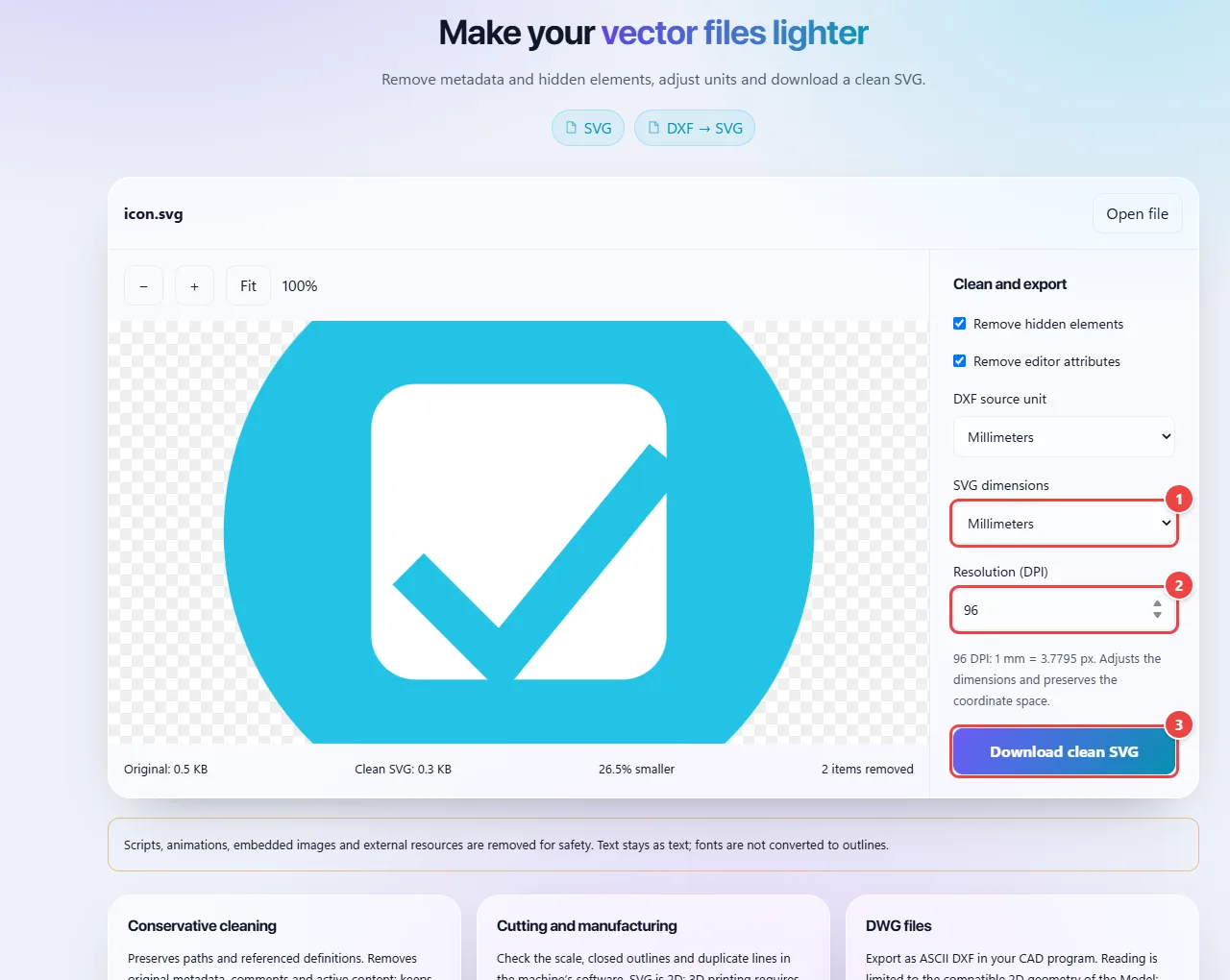
- Point 1: Choose the output unit: preserve, pixels or millimeters. The drawing does not change shape; the measurements stored in the file change.
- Point 2: Enter the source DPI: at 96 DPI, 96 px equal 25.4 mm.
- Point 3: Download the SVG and check the dimensions in the machine’s software.
Result: An SVG with the dimensions in the unit the cutting software expects.
Convert a simple DXF to SVG
Situation: You received a 2D drawing as a DXF and need it as a vector.
- Open the 2D ASCII DXF. Under “DXF source unit”, choose millimeters, pixels or inches.
- Check the preview: curves are approximated by segments.
- Download the resulting SVG. To view and export as PDF or PNG, use the CAD tool.
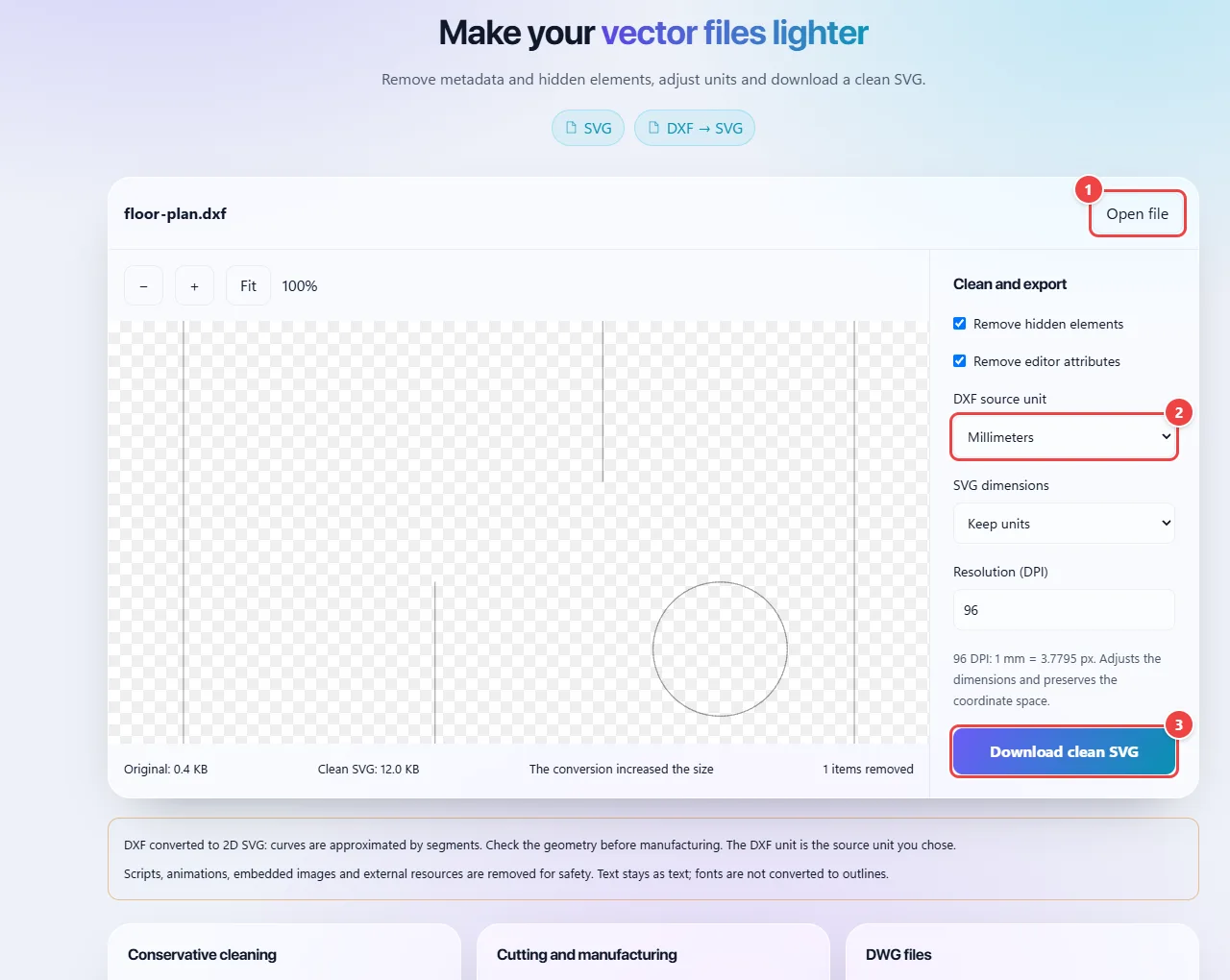
- Point 1: Open a 2D ASCII DXF: it is converted to SVG right here.
- Point 2: Choose the DXF’s source unit (millimeters, pixels or inches). Curves are approximated by segments.
- Point 3: Download the resulting SVG. To export as PDF or PNG, use the CAD tool.
Result: An SVG made from the DXF, in the right unit.
Tips for a better result
- Check the preview after cleaning: removing elements from a file that depends on external styles can change the drawing.
- Enter the correct source unit and DPI: that is where the final scale comes from.
- Text stays as text. If the font is not installed where the file is opened, convert the text to curves in your editor first.
Limits, and when this is not the best option
- DXF conversion covers simple 2D drawings in ASCII format; DWG is not accepted.
- Embedded images, scripts and animations are removed for safety.
- Removing elements can change files that depend on scripts or external styles.
Frequently asked questions
- Why clean an SVG?
- It reduces the size and removes editor data that does not affect the drawing.
- What are “hidden elements”?
- Objects the drawing does not show, such as those with display none, zero opacity or hidden visibility. They take up space in the file without appearing.
- Why do some images disappear from the SVG?
- Embedded images are removed for safety, along with scripts and animations. The vector drawing is kept.
- Is the file sent to a server?
- No. The cleaning and conversion happen in your browser.