How to create continuous (seamless) patterns and textures for websites and prints
A continuous pattern repeats a unit in all directions without leaving a visible seam. This guide shows how to build the unit with shapes, ready textures or your own images, choose the repeat type (grid, brick, half drop, mirrored and others) and export the image or just the unit with CSS.
Guide written by Marcelo Amantino · updated on October 19, 2026 · about us
Where your data is processed
This tool runs entirely in your browser: your files and data are not sent to any WebFaz server.
The pattern is built and drawn in your browser. The images you add do not go to any server.
See the full list on the Privacy page.
Real-world use cases
Build the pattern unit
Situation: You want a print background for a shop’s website.
- In the library, click a shape (circle, square, star, heart, leaf…), choose a color and add as many as you like. To use your own drawing, click “Add images”.
- The ready textures (fabric, brick, polka dots, stripes, tiles, honeycomb, checkerboard, waves, argyle, crosses) serve as a base.
- Drag and resize the elements in the block. The selected element’s panel adjusts position, scale and rotation.
- Use “Undo”, “Redo” and “Reset” freely.
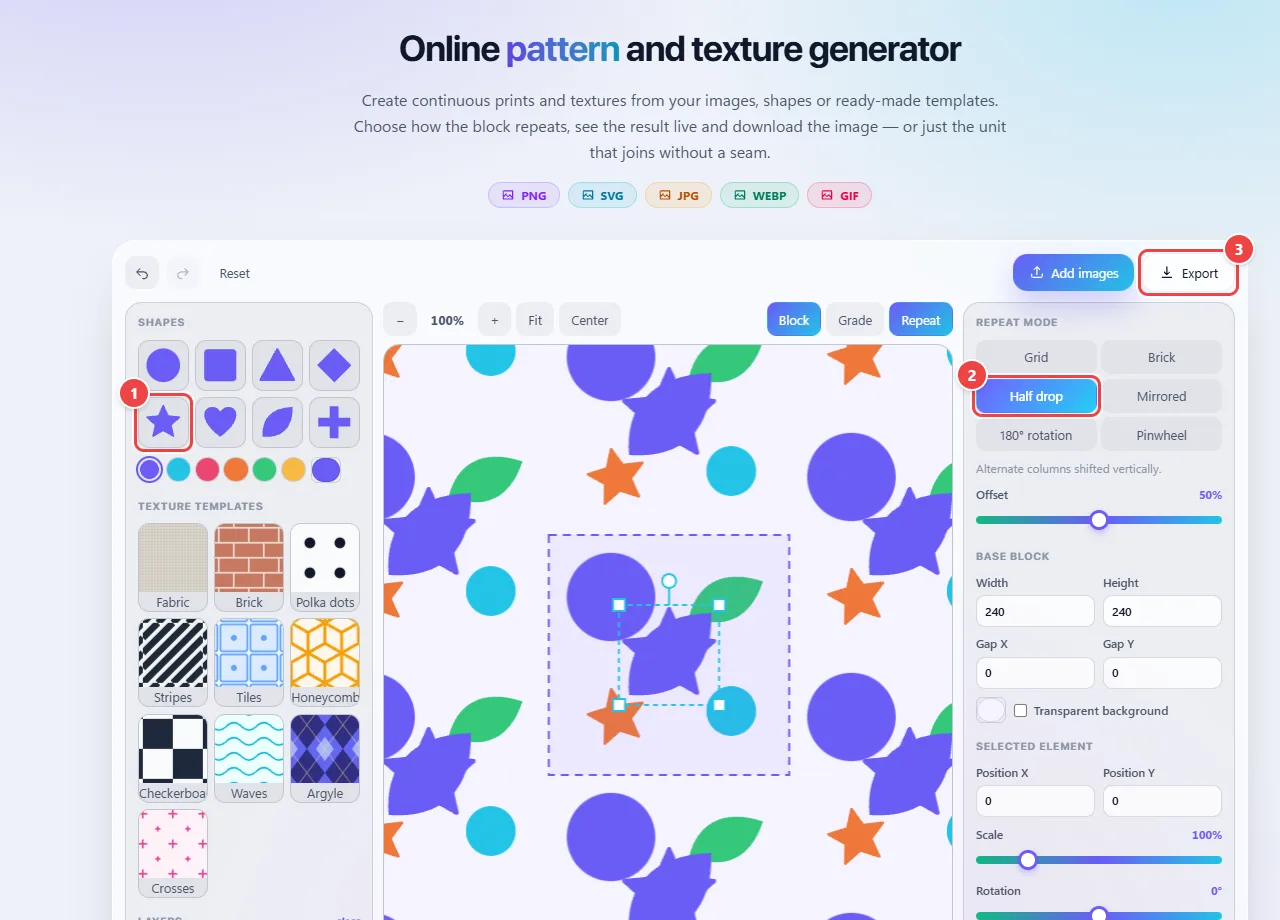
- Point 1: Add ready-made shapes and textures, or use “Add images” to upload your own.
- Point 2: Choose how the tile repeats: grid, brick, half drop, mirrored and others.
- Point 3: Export the pattern image or just the unit with ready CSS.
Result: A pattern unit built with your elements.
Choose how the pattern repeats
Situation: You want to disguise the repetition and give the print some rhythm.
- Switch between “Block” (the unit), “Grid” and “Repeat” (the repeated result) to check the preview.
- Under “Repeat mode”, choose grid, brick, half drop, mirrored, 180° rotation or pinwheel.
- Adjust the offset, the block’s width and height and the gap in X and Y. Turn on “Transparent background” if you will use it over other colors.
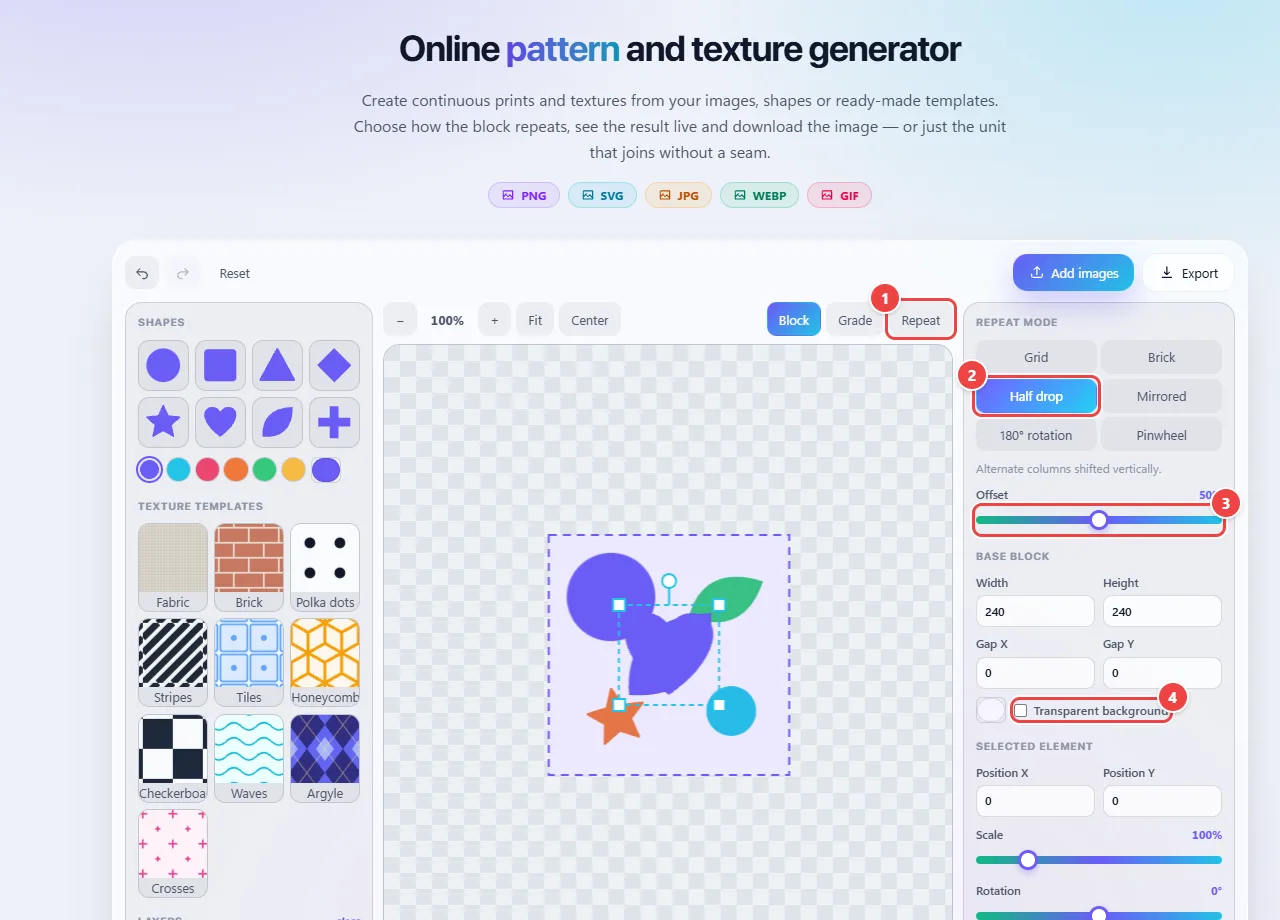
- Point 1: Tile shows the unit; Grid and Repeat show the repeated result so you can check it.
- Point 2: Choose the repeat mode: grid, brick, half drop, mirrored, 180° rotation or pinwheel.
- Point 3: Adjust the offset between rows or columns, plus the width, the height and the spacing between tiles.
- Point 4: Turn on the transparent background if you will use the pattern over other colors.
Result: A continuous pattern, with the repeat that suits your project.
Export the image or just the unit with CSS
Situation: The pattern is ready and you need to take it to the website or the print shop.
- Click “Export”.
- Choose between downloading the pattern image (PNG, JPG or WEBP) or just the unit with the CSS that repeats it as a background, which keeps the page lighter.
- For printing, use more resolution; for websites, small units are enough.
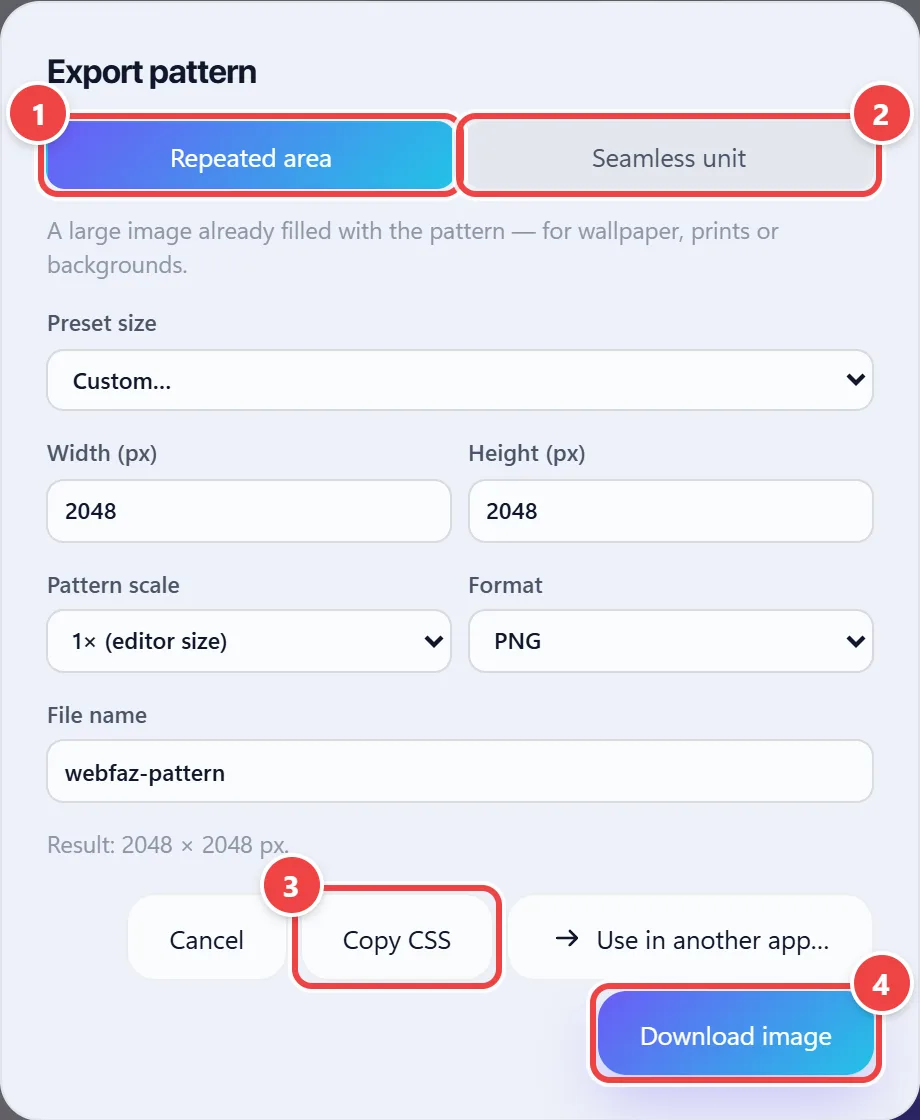
- Point 1: Repeated area exports a large image already filled with the pattern, for wallpaper, prints or backgrounds.
- Point 2: Seamless unit exports only the block that repeats, which keeps the file small.
- Point 3: Copy CSS gives the code that repeats the unit as a page background.
- Point 4: Download image saves the file in the chosen format (PNG, SVG, JPG, WEBP or GIF).
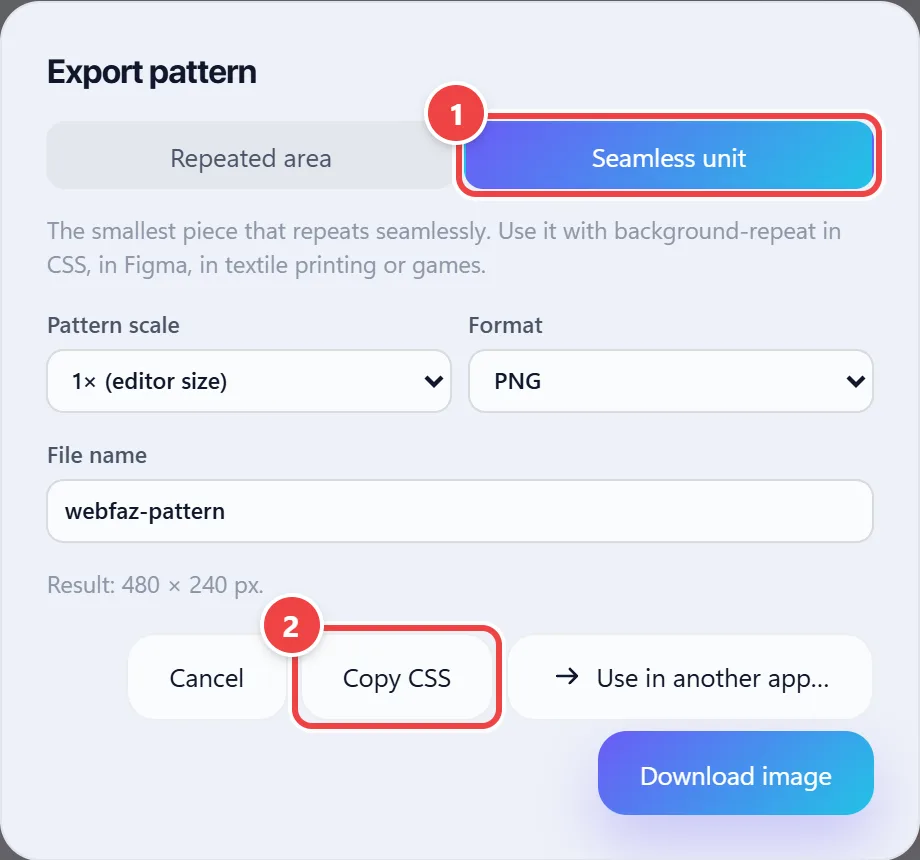
- Point 1: On this tab, you export only the repeatable unit. On the site, the CSS repeats it as a background, and the page stays light.
- Point 2: Copy CSS embeds the unit in the code (up to 1,600 px) and copies the background ready to paste.
Result: An image file or the ready CSS to repeat the unit.
Tips for a better result
- Prefer elements with a transparent background: seams are less noticeable.
- Use spacing to give the elements room and avoid a tight pattern.
- Export only the unit with CSS when the destination is a web page: the file is much smaller than the full image.
Limits, and when this is not the best option
- Source images with irregular edges can leave visible seams.
Frequently asked questions
- What is “half drop”?
- A repeat in which alternate columns are shifted by half the height, common in textile printing because it disguises the repetition.
- Why do seams appear?
- Usually the edges of the source image are not continuous. Use elements with a transparent background or increase the spacing.
- Can I use the pattern on a website?
- Yes. The tool offers ready CSS to repeat the unit as a background.
- Are my drawings sent to any server?
- No, the pattern is created in the browser.