Find the pixel.
Test every color.
Use uniform backgrounds to inspect your screen and place an RGB noise area over the spot you want to test.
Set up your session
The noise contains rapidly changing colors. Do not start it if you are sensitive to flashing lights.
It opens in fullscreen and the noise starts right away. Press Esc to leave at any time.
One spot at a time
Six backgrounds to inspect the screen, an adjustable area and a panel that follows you. Drag with the mouse or touch.
How to use PixelFix
1. Open the diagnostic and choose a background color.
2. Drag the area to the spot you want and adjust the width and height. The keyboard arrow keys also move the selected area.
3. Start the noise. The timer ends the animation automatically. Use Esc or End to leave.
The noise is an attempt to free stuck pixels, with no guarantee of recovery. Physically damaged pixels cannot be repaired by software.
About PixelFix
Helps identify stuck or dead pixels on your monitor with solid color backgrounds, and to try to “wake up” the affected area with RGB noise.
A practical example
You noticed a fixed green dot in the corner of your new laptop’s screen. You open the tool in fullscreen, switch between the red, green, blue, black and white backgrounds and confirm that the dot does not change color on any of them. You place the noise area over the dot, let it run for 10 minutes and test again on the black background. If the dot went back to normal, it was a stuck pixel.
How to use it
- Open in fullscreen and switch between the diagnostic backgrounds.
- Find the spot that does not change color.
- Place the noise area over it and set the time.
- Let it run and test again.
Limits and cautions
- Stuck pixels sometimes go back to normal, but truly dead pixels cannot be repaired by software.
- Colors alternate rapidly: avoid it if you are sensitive to flashing lights.
A ferramenta em uma imagem
Os pontos de clique estão numerados. Toque na imagem para vê-la em tamanho original. As demais telas, passo a passo, estão no guia “Como funciona”.
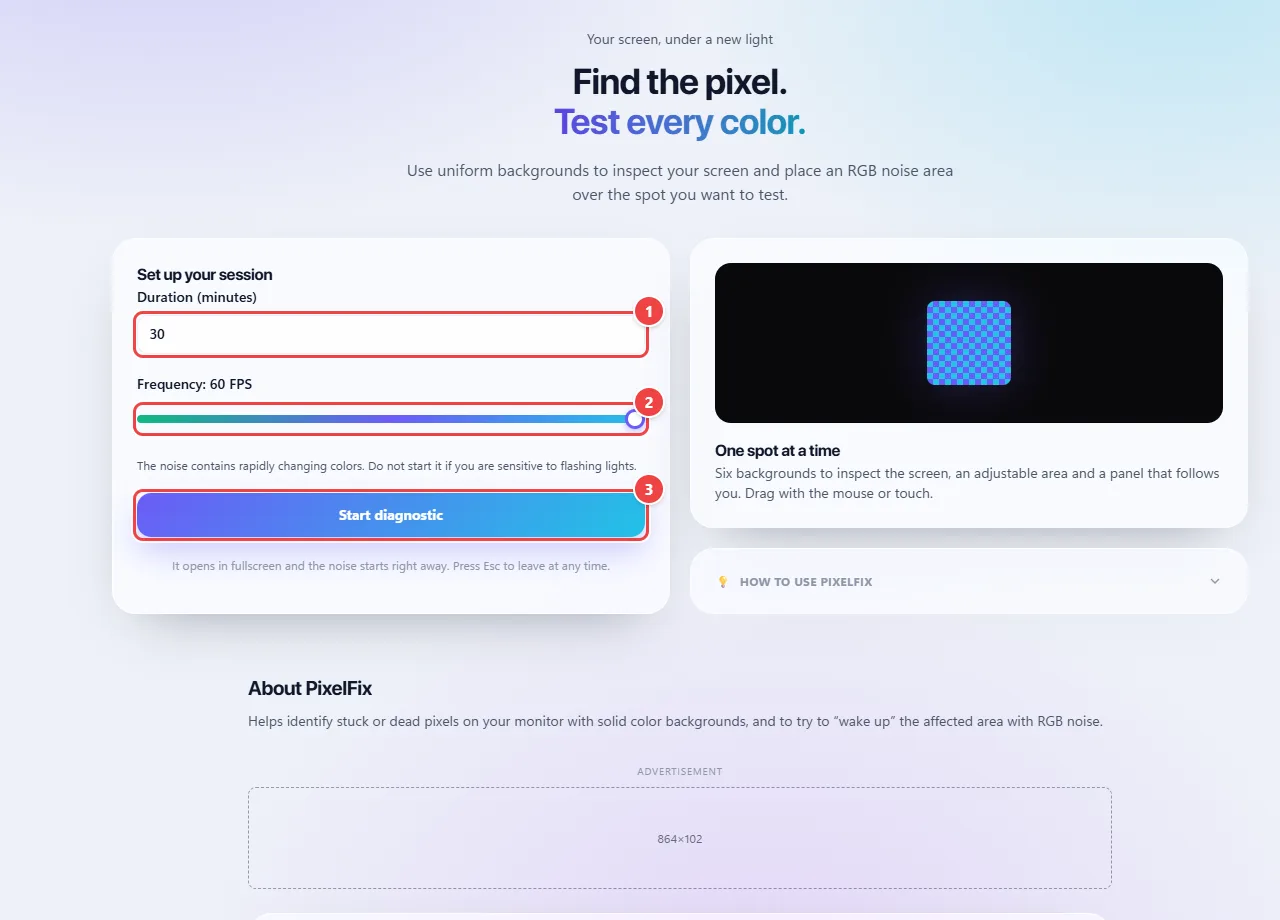
- Point 1: Set for how many minutes the colored noise will run.
- Point 2: Adjust the noise refresh frequency.
- Point 3: Start diagnostic opens full screen with the noise. Leave with Esc at any time. Warning: the noise changes color quickly.
When to use it
- Checking a monitor or laptop when buying or receiving it, while there is still time to ask for a replacement.
- Trying to recover a stuck pixel that appeared after some time of use.
- Diagnosing whether the spot on the screen is a monitor defect or dust or dirt on the surface.
Tips
- Clean the screen with a soft cloth before the test, so you do not confuse dirt with a defect.
- Run the tests with the room lights low: dark spots on the white background and bright spots on the black background are easier to find.
- On OLED phones, avoid leaving the screen for a long time with an intense static image.
What happens in your browser
A monitor pixel is made of three subpixels (red, green and blue). A stuck pixel is locked in an on state; a dead or burnt pixel is always off. Solid-color backgrounds help tell one from the other: a dot that does not follow the color change is defective.
The “wake-up” is a small area of colored noise that rapidly alternates the subpixels’ colors, trying to free one that got stuck. It is just moving images, drawn on the browser’s screen; nothing is installed and the monitor is not configured.
It works on any screen the browser reaches (monitor, laptop, phone), but the result depends on the defect: software cannot fix a physically damaged pixel.
Read the full guide: real-world use cases, tips and limits →
Privacy: This tool runs entirely in your browser: your files and data are not sent to any WebFaz server. Learn more.
Perguntas frequentes
- Can this damage the screen?
- The noise is just moving images, like a video; even so, use it for short periods.
- What is the difference between a stuck pixel and a dead pixel?
- A stuck pixel stays on one fixed color and can recover; a dead pixel is always off (black).
- Can I use it on a phone?
- Yes, on any device with a browser. On small screens, the noise area needs to be placed carefully over the spot.
- How long should I leave it running?
- People usually try 10 to 30 minutes. If nothing changes after a few attempts, the pixel is probably damaged.
- Is a single defective pixel covered by the warranty?
- It depends on the manufacturer’s policy (many require a minimum number of pixels). Use the solid backgrounds to document the defect with a photo.
- Can I make the defect worse?
- It is unlikely: the tool only displays images, like a video. Even so, avoid very long sessions.
- Is there a risk for people with photosensitivity?
- Yes. The noise area alternates colors quickly. People who are sensitive to flashing lights should not use it.