How to test for stuck pixels on your screen and try to recover them with PixelFix
A colored dot that does not change on the screen can be a stuck pixel, a dead pixel or just dirt. This guide shows how to use solid-color backgrounds to tell each case apart and how to run colored noise over the dot to try to free a stuck pixel.
Guide written by Marcelo Amantino · updated on October 19, 2026 · about us
Where your data is processed
This tool runs entirely in your browser: your files and data are not sent to any WebFaz server.
PixelFix only draws images on your browser’s screen (color backgrounds and an area of colored noise). Nothing is sent or installed, and your monitor’s settings are not changed.
See the full list on the Privacy page.
Real-world use cases
Diagnose the faulty dot
Situation: You noticed a fixed dot on the screen and want to know what it is.
- Clean the screen with a soft cloth, so you do not confuse dirt with a defect.
- Reduce the room light and click “Start diagnostic”: the tool opens in fullscreen.
- Switch between the solid-color backgrounds and watch the dot. If it follows the color, it was dirt; if it stays stuck on one color, it is stuck; if it is always black, it is dead.
- Press Esc when you want to leave.
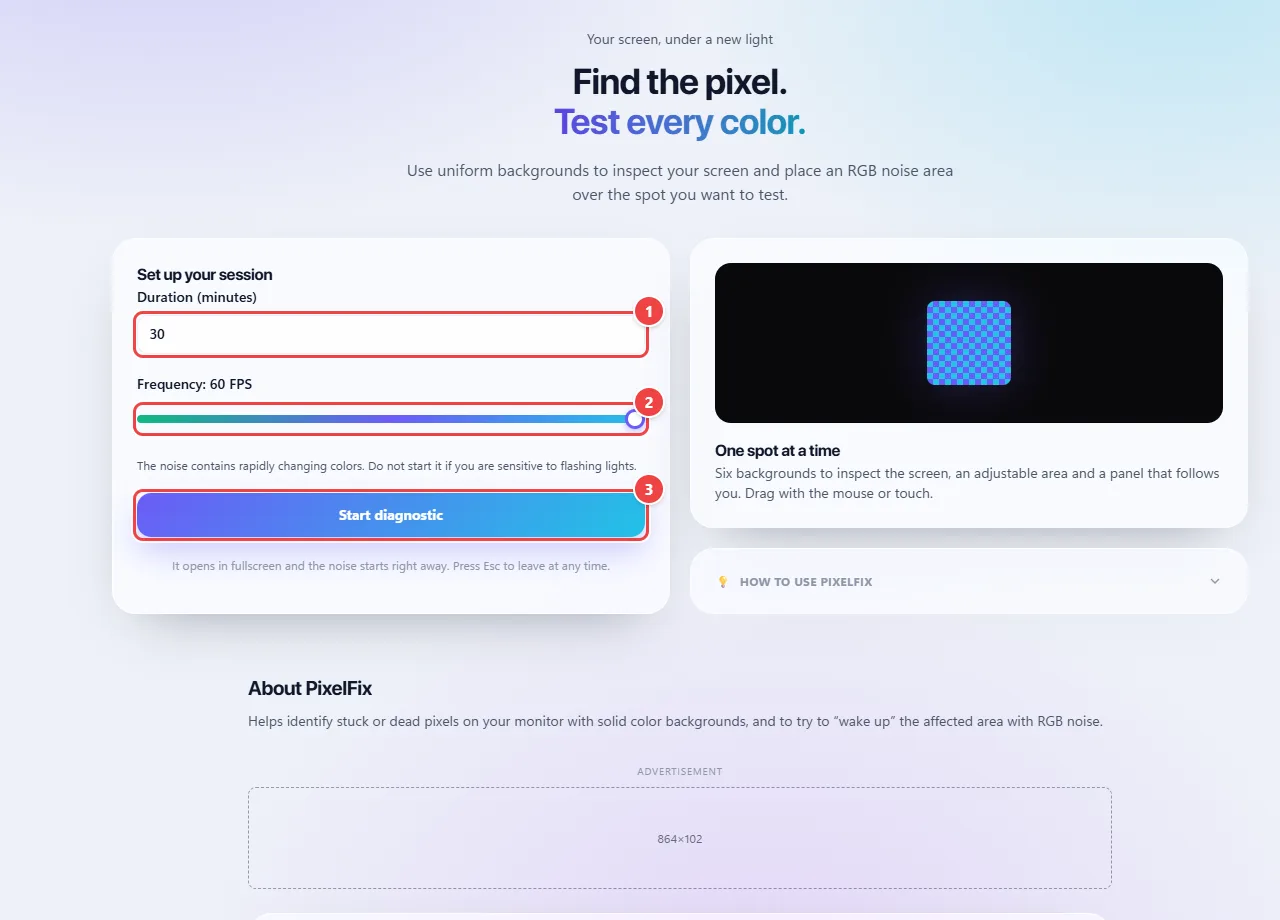
- Point 1: Set for how many minutes the colored noise will run.
- Point 2: Adjust the noise refresh frequency.
- Point 3: Start diagnostic opens full screen with the noise. Leave with Esc at any time. Warning: the noise changes color quickly.
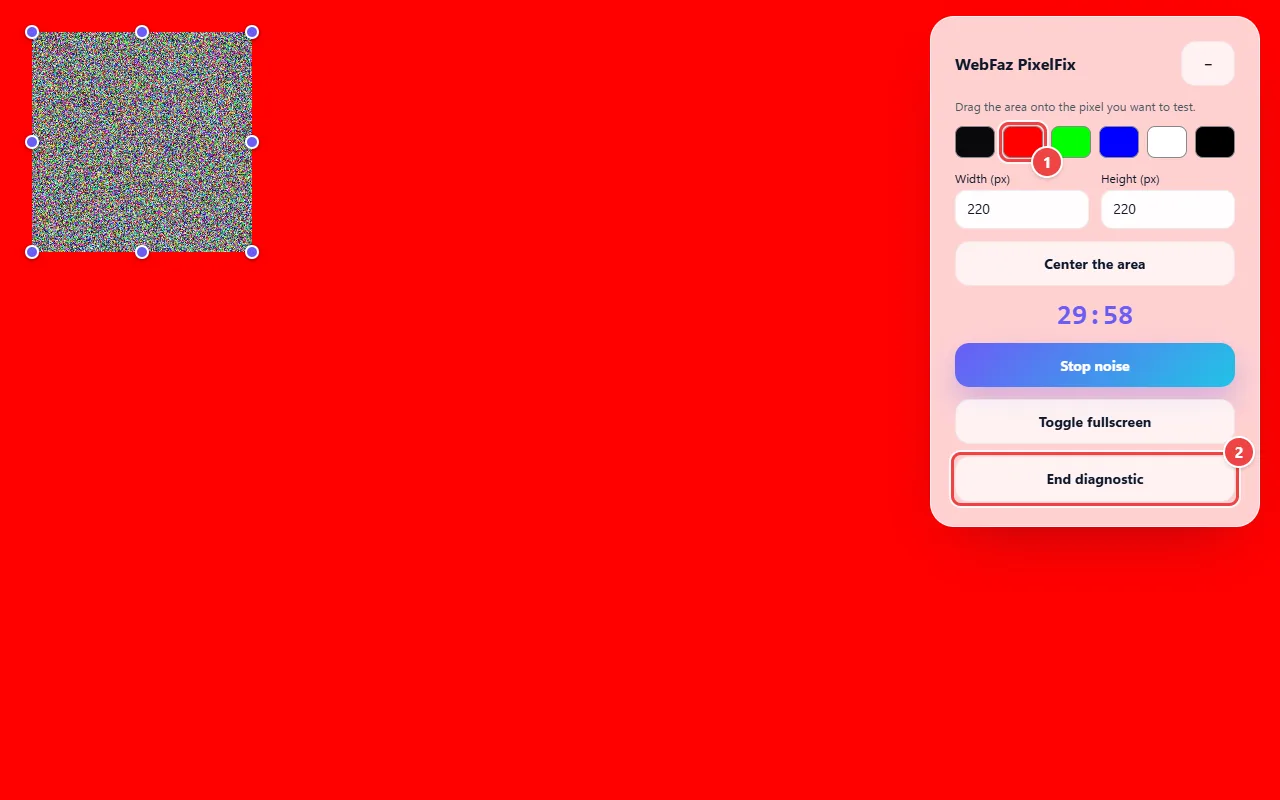
- Point 1: Switch between the solid-color backgrounds and watch the spot. If it follows the color, it was dirt; if it stays stuck on one color, it may be a stuck pixel.
- Point 2: End whenever you want: the Esc key also exits. Before starting, clean the screen with a soft cloth and lower the room light.
Result: You know whether the dot is dirt, a stuck pixel or a dead pixel.
Try to free a stuck pixel
Situation: The diagnostic pointed to a pixel stuck on one color.
- Before starting, adjust the duration (in minutes) and the noise frequency (frames per second).
- Start the diagnostic and place the noise area over the dot, dragging with the mouse or with touch.
- Let it run for 10 to 30 minutes and test again on a solid-color background.
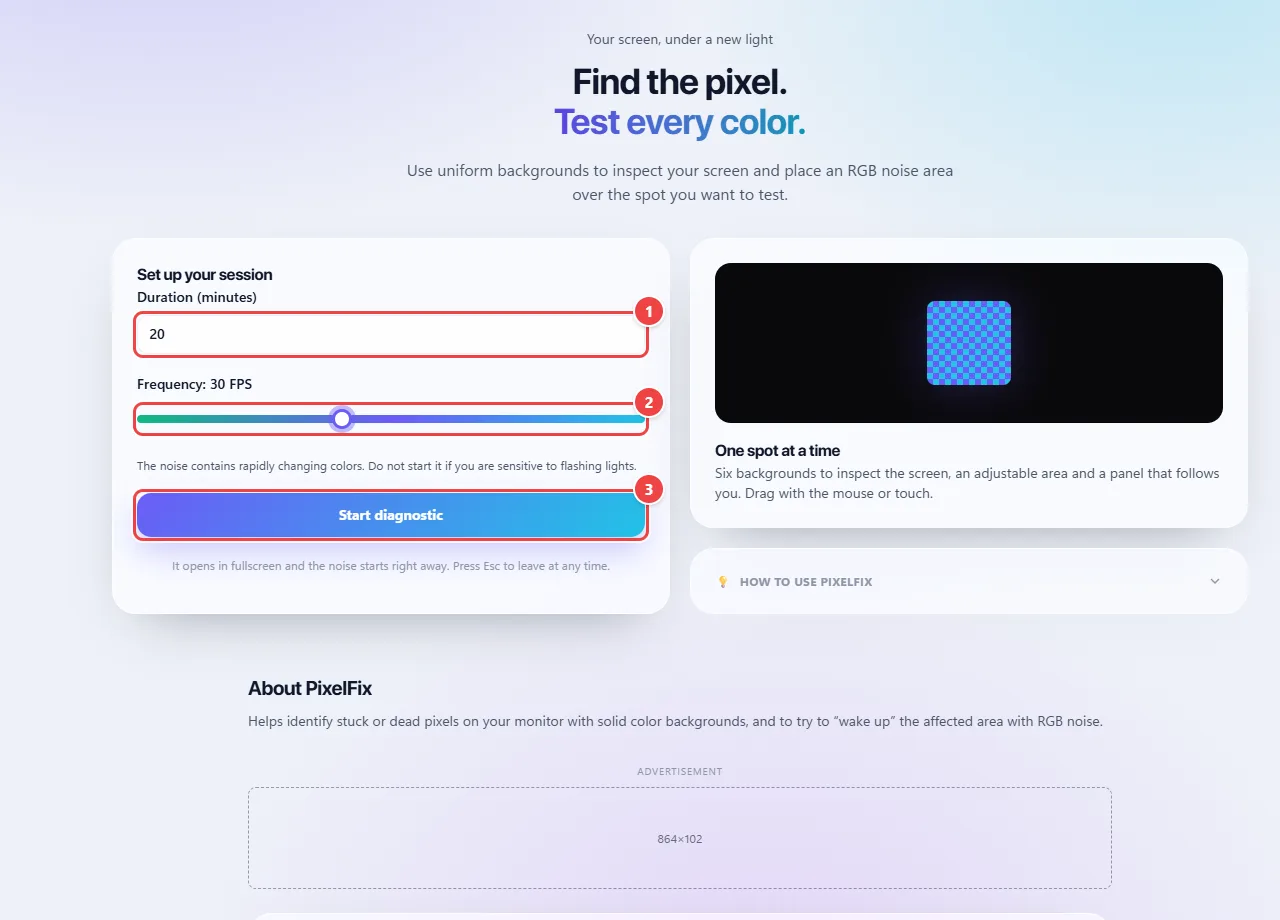
- Point 1: Set for how many minutes the noise will run. In general, let it run for 10 to 30 minutes and test again on a solid-color background.
- Point 2: Adjust the noise frequency, in frames per second.
- Point 3: Start diagnostic opens full screen: drag the noise area over the spot and leave with Esc. Warning: the noise changes color quickly.
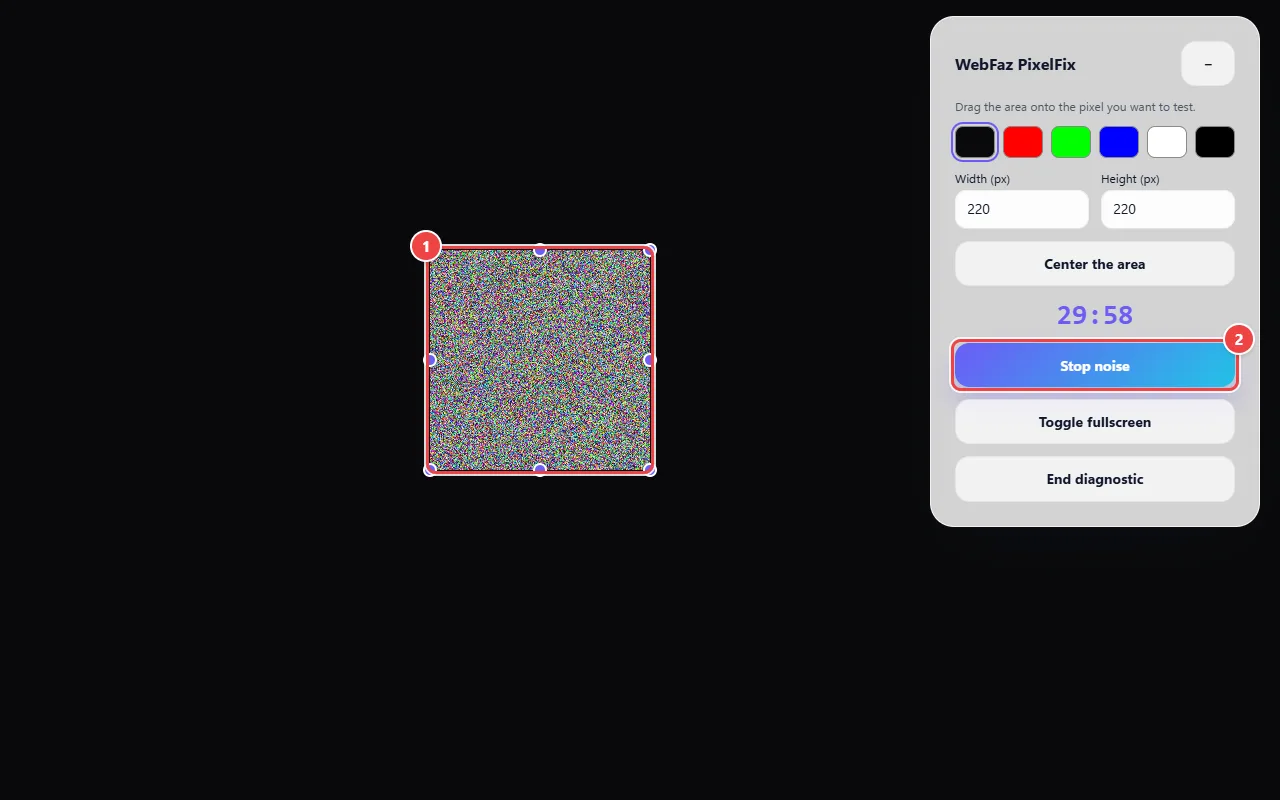
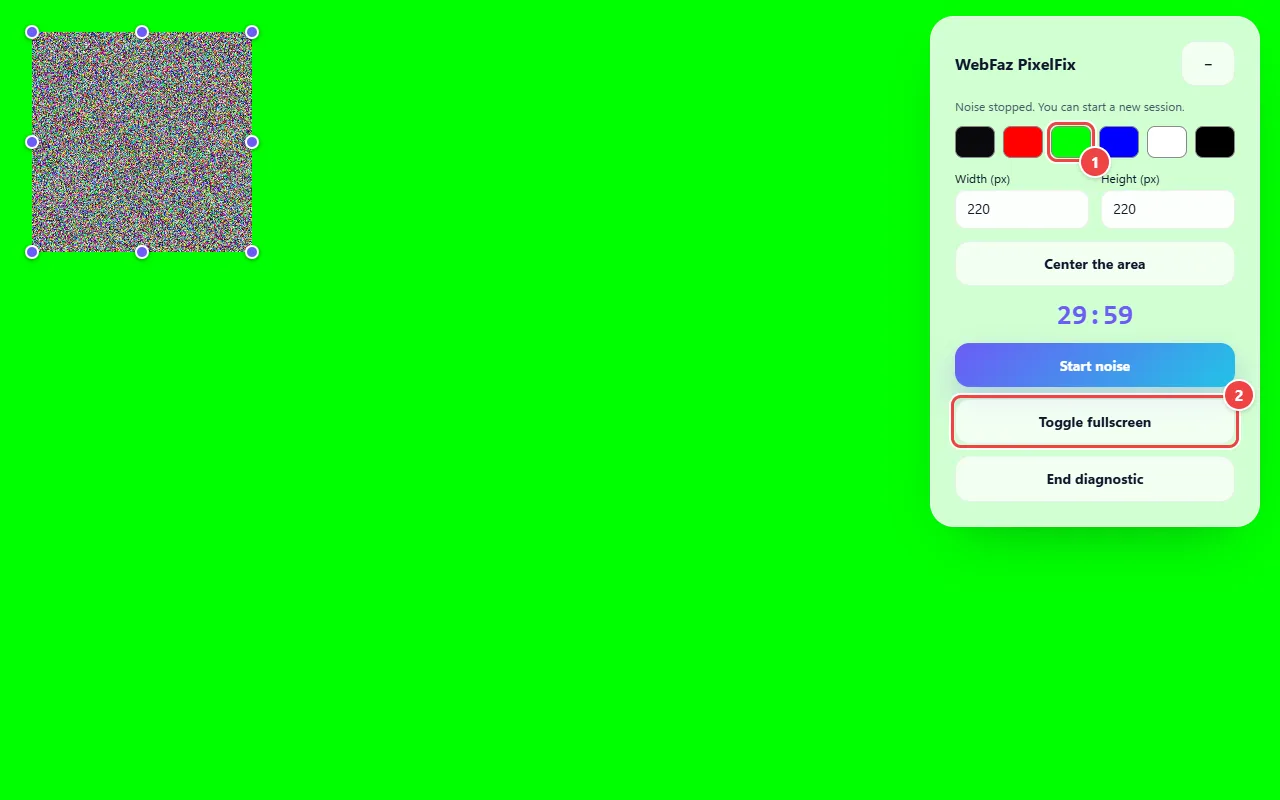
- Point 1: Position the noise area over the spot, dragging with the mouse or touch. The handles on the corners change the size.
- Point 2: Let it run for 10 to 30 minutes and then test again on a solid-color background. Stop noise interrupts whenever you want.
Result: If the pixel was only stuck, it may start changing color again.
Document a defect for the warranty
Situation: You bought a new screen and want to prove the defect when asking for a replacement.
- Open the solid-color backgrounds in fullscreen, in a dark room.
- Photograph the defective dot on each background, showing that it does not change.
- Attach the photos to the replacement request, remembering that each manufacturer has its own policy on defective pixels.
- Point 1: Open the solid-color backgrounds in full screen, in a dark room, and photograph the defective spot on each background, showing that it does not change.
- Point 2: Use full screen so the photo comes out without the browser interface. Attach the photos to the replacement request: each manufacturer has its own policy on defective pixels.
Result: Clear photos of the defect, taken against solid-color backgrounds.
Tips for a better result
- Run the tests in low light: dark spots on the white background and bright spots on the black background are easier to find.
- If nothing changes after a few attempts, the pixel is probably damaged.
- On OLED phones, avoid leaving the screen for a long time with an intense static image.
Limits, and when this is not the best option
- Truly dead pixels cannot be repaired by software.
- Colors alternate rapidly: people who are sensitive to flashing lights should not use it.
- The result depends on the defect; the tool only displays images.
Frequently asked questions
- What is the difference between a stuck pixel and a dead pixel?
- A stuck pixel stays on one fixed color and can recover; a dead pixel is always off (black).
- Can this damage the screen?
- The noise is just moving images, like a video. Even so, use it for short periods.
- How long should I leave it running?
- People usually try 10 to 30 minutes. If nothing changes after a few attempts, the pixel is probably damaged.
- Can I use it on a phone?
- Yes, on any device with a browser. On small screens, the noise area needs to be placed carefully over the spot.