Scans and 3D printing
STL in millimeters
Take scans and 3D models to the format 3D printers accept, with the size in millimeters.
Your 3D models are opened and converted in the browser, with no upload. Learn more
Convert GLB, OBJ, STL, FBX, PLY, GLTF and USDZ for free and view 3D models right in the browser — rotate, inspect the mesh, see vertices and dimensions. Nothing to install and no file upload.
Drag the model into the scene. For GLTF and OBJ with external files, select the .bin, the .mtl and the textures together. GLB with Draco or Meshopt compression also opens.
Switch between solid, wireframe, clay and normal map. Hide parts, select objects with a double-click and check vertices, triangles and dimensions.
Choose the output format and download. You can also save a PNG image of the scene — even with a transparent background.
Each conversion has its own page, with the step by step, tips and the limits of what it does.
STL in millimeters
Take scans and 3D models to the format 3D printers accept, with the size in millimeters.
USDZ
Open USDZ models or generate USDZ from GLB.
GLB and OBJ
Switch between the formats most used on the web and in modeling programs.
WebFaz 3D is a free 3D file converter and viewer that runs in your browser: the model is not sent to any server. The model that appears when the page opens is a demonstration — you can already test the view modes and the conversion. Open your own file to replace it.
How to convert GLB to OBJ, STL to GLB, FBX to GLTF and others. Open the file (GLB, GLTF, OBJ, STL, PLY, FBX, DAE or USDZ), choose the output format under “Convert to” and click “Convert and download”. GLB and GLTF keep materials, textures and animations. OBJ, STL and PLY store the geometry (PLY also keeps vertex colors). USDZ is for viewing the model in augmented reality (AR Quick Look) on iPhone and iPad. The conversion exports what is visible: objects hidden in the list are left out.
Online 3D viewer. Drag to rotate, right-click (or two fingers) to pan, wheel to zoom. Switch between solid, wireframe, clay and normal map, use front/top/side views, see vertices, triangles, materials and dimensions, and save a PNG image (even with a transparent background). Shortcuts: R frames the model, W toggles wireframe, G shows or hides the grid.
For 3D printing, Blender and the web. Convert models to STL to slice and print, to OBJ to open in Blender, Maya or 3ds Max, or to GLB to use on websites, games and augmented reality. If the GLTF has external files, select the .bin and the textures together; for OBJ, the .mtl. GLB with Draco or Meshopt compression also opens.
Limits. Files up to 400 MB. KTX2/Basis textures are not supported. Since everything runs on your device, very heavy models depend on your graphics card’s memory.
Views and converts 3D models between formats such as GLB, GLTF, OBJ, STL, FBX, PLY and USDZ, showing vertices and dimensions.
A viewer and converter that runs in the browser, to check a model before using it and take it to the format your program accepts. The features that stand out:
Opens GLB, glTF, OBJ, STL, PLY, FBX, DAE and USDZ (including iPhone scans) and converts to GLB, glTF, OBJ, STL, PLY or USDZ (Apple’s augmented reality format). GLB gathers everything, textures included, in a single file: the best for the web. Not every conversion preserves textures and animations.
For glTF and OBJ with external files, select the .bin, the .mtl and the textures together. GLB with Draco or Meshopt compression also opens.
See vertices, triangles, meshes, materials, textures, animations and the model’s dimensions, and hide or show parts in the object tree.
Switch between Solid, Wireframe, Clay and Normals, and use ready views (front, top, side and isometric), grid, axes, bounding box and orthographic camera.
Save a PNG image of the model as it is on screen, even with a transparent background, or open it in full screen.
Adjust the background color, shadows, auto-rotation and light intensity to see the model under different conditions.
Reading and conversion happen in the browser, using your device’s graphics card.
A friend sends you an OBJ model to 3D print, but the slicer asks for STL. You open the OBJ in the tool, rotate the model to check that no parts are missing, check the dimensions and the vertex count, choose STL as the output and download the converted file.
Os pontos de clique estão numerados. Toque na imagem para vê-la em tamanho original. As demais telas, passo a passo, estão no guia “Como funciona”.
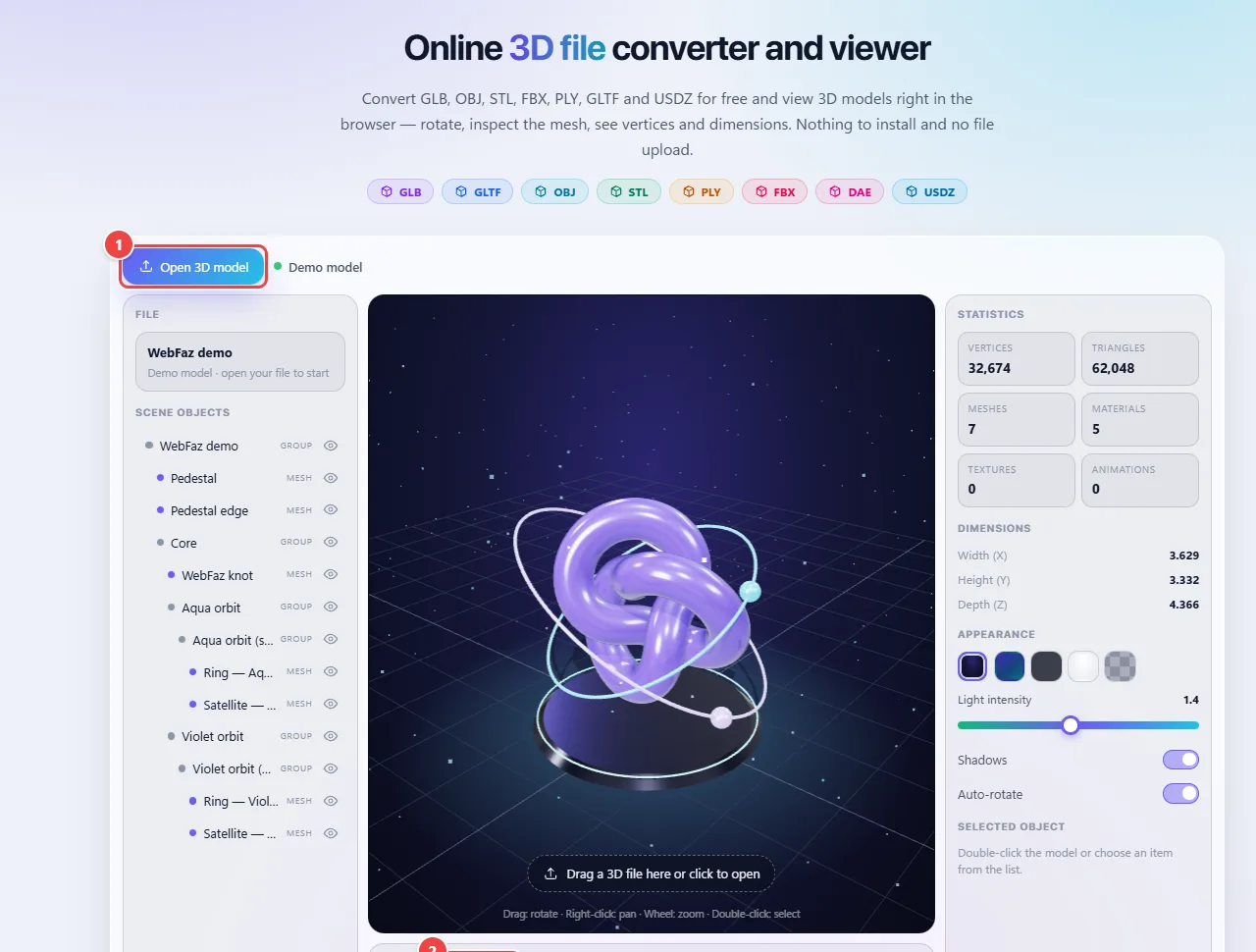
The model is loaded in the browser and drawn with WebGL, the graphics technology that uses your device’s graphics card. The input and output formats are the ones listed on the page (GLB, GLTF, OBJ, STL, FBX, PLY and USDZ), each with its own purpose: GLB and GLTF are preferred for the web, STL is the standard for 3D printing, and USDZ is Apple’s augmented reality format.
Each format stores different information. STL, for example, has only the geometry (triangles), with no colors, textures or animations. When converting from a rich format to a simple one, whatever the target does not support is lost.
Reading and conversion happen locally. Your model file is not sent to WebFaz.
Read the full guide: real-world use cases, tips and limits →
Privacy: This tool runs entirely in your browser: your files and data are not sent to any WebFaz server. Learn more.