Bring your digital reading to life
Open your e-book, find your pace and take the ideas with you. Read, take notes and convert locally. Turn on the optional translation to follow the original in another language.
MOBI without DRM, versions up to 6, without HUFF/CDIC compression. EPUB with compatible images, tables and charts. PDF with text and a preview of the original page. Classic MOBI with text and images.
Reader ready for offline use. Books from recent access can be resumed without internet. New translations and Wiktionary lookups need a connection.
Your reading space
Full screen, sepia paper, night mode and letters at your size.
Ideas that stay
Annotate passages, mark chapters and download your notebook as Word or Markdown.
Read with your ears too
Listen to chapters with the browser’s voices, resume where you left off or start from a selected passage.
Before opening your next book
EPUB adapts to the screen size. PDF has fixed pages, so text extraction may change the order of columns. MOBI is a classic format and this app reads versions up to 6 without DRM, with uncompressed or PalmDOC text.
Scanned PDFs can be viewed through the original page. To select, listen to or convert the text, use WebFaz OCR. Read-aloud depends on the browser’s voices; some voices may use system services.
Conversions follow the text structure: covers, images, tables and original fonts are not preserved. The original file is not kept. The processed text, the compatible visual elements and the thumbnail stay in the local cache to resume reading from the recently opened list.
About E-books & Digital Reading
E-book reader in the browser (EPUB, PDF and MOBI), with nothing to install and no book sent to a server: see the translation next to the original, listen to read-aloud, convert to EPUB, PDF or TXT, read two books at once, mark passages in colors, create notes and download your notebook and back up everything.
What this reader does
A complete, free reader with no sign-up, running in the browser. These are the features that stand out:
Simultaneous translation
Original on the left and translation on the right, paragraph by paragraph, in nine languages. The translation follows the chapter you are reading (the text is sent to an AI service only if you turn it on).
Voice reading
Listen to the chapter with your device’s voices, choosing the voice, the speed (from 0.5× to 2×), the pitch and the volume.
Format conversion
Turn the open book into EPUB, PDF or TXT, adjusting title, author and the PDF font. Classic DRM-free MOBI can also be read and converted.
Two books at once
Open a second reader, with independent chapters and scrolling, to compare editions or consult one work while reading another.
Side by side, like an open book
The chapter is paginated in two columns, with navigation two pages at a time and automatic adjustment to the font size.
Colored markings and notes
Select a passage and mark it in five colors, as highlight or underline, or keep it with a note of your own. Selections that run from one paragraph to another also work.
Reading notebook to download
All notes and markings stay on the Notes tab and can be downloaded as Word or Markdown, to take to your notes app.
Backup and restore
Download a file with books, images, progress, notes and preferences, and restore it in another browser or computer without duplicating notes.
Your way and even offline
Paper, sepia and night themes, adjustable font, line spacing, width and size, saved reading position and word lookup on Wiktionary. After the first visit, the reader can reopen cached books without a connection.
A practical example
You downloaded an EPUB and want to study with notes. You open the file, mark the important passages in different colors and write comments on the hardest ones. You open a second book alongside to compare a passage and turn on simultaneous translation to check a paragraph in another language. In the end, you download the notebook as Markdown and make a backup to continue on another computer.
How to use it
- Open an EPUB, PDF or MOBI (up to 40 MB) or try the sample book.
- Read and adjust theme, font and size; use the contents and the search.
- Select passages to mark, annotate or look up a word.
- Use the reader’s features: side by side, two books, simultaneous translation and voice reading.
- Convert the book, download your notes (Markdown or JSON) or make a backup.
Limits and cautions
- Books with DRM protection cannot be opened.
- Conversions carry the text and chapters, but not covers, images, original fonts or layout; complex PDFs may not come out perfect.
- Simultaneous translation sends the page or chapter text to an AI service and is automatic: it may contain inaccuracies. Everything else stays in your browser.
- There are limits of 40 MB per book and 500 notes per book.
A ferramenta em uma imagem
Os pontos de clique estão numerados. Toque na imagem para vê-la em tamanho original. As demais telas, passo a passo, estão no guia “Como funciona”.
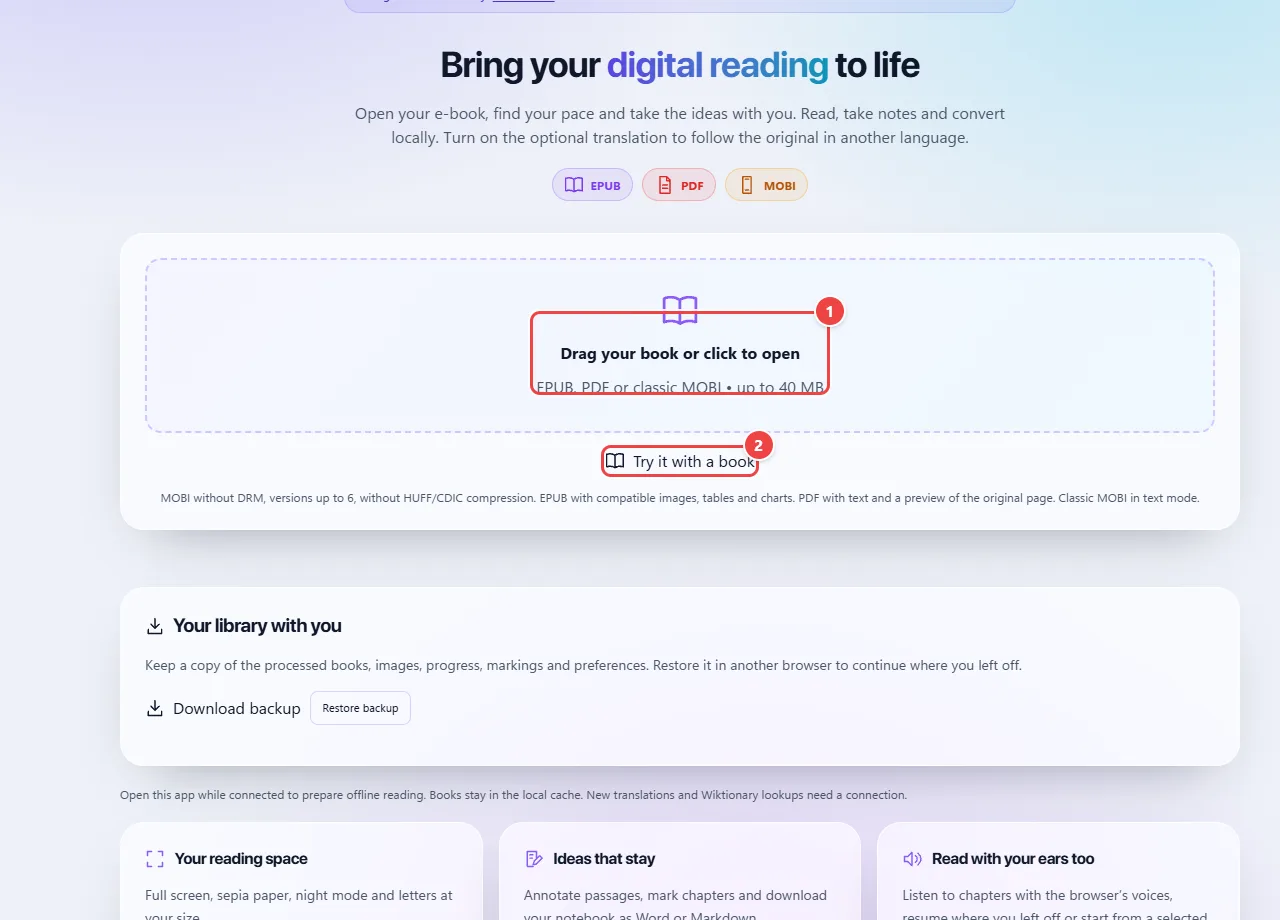
- Point 1: Open an EPUB, PDF or MOBI e-book (up to 40 MB). The book stays in your browser.
- Point 2: No book at hand? Try it with a sample book.
When to use it
- Studying with a book or article: marking in colors, annotating and downloading the notes to review.
- Comparing two editions, or an original and a review, by reading two books at once.
- Following a reading in another language with the original and the translation side by side.
- Listening to a chapter while doing something else, adjusting the voice and speed.
- Converting a PDF or MOBI into EPUB to read on the phone, or an EPUB into PDF to print.
- Taking the library, notes and progress to another computer with the backup.
Tips
- To convert PDF to EPUB, prefer PDFs with selectable text; scanned PDFs are images.
- Download the notes (Word or Markdown) and make a backup when you finish a study session: clearing the browser data erases the notes.
- If the converted text looks odd, check the original PDF: the problem usually comes from its structure.
- Review the simultaneous translation: it is automatic and may contain inaccuracies.
What happens in your browser
The formats are opened and interpreted in the browser: EPUB is a package of web pages, PDF keeps the fixed layout and MOBI is Amazon’s old format. The book is not sent to WebFaz; it stays on your device. The file is identified by a fingerprint (SHA-256), and the position, notes and markings are kept in this browser.
Conversion between formats rebuilds the text and chapters into a new file (EPUB, PDF or TXT). Since PDF stores positions on the page and not the structure, complex layouts, with columns or tables, may not come out perfect; covers, images and original fonts do not go into the converted file.
Simultaneous translation is the only part that sends data: the text of the page or chapter is sent to an AI translation service, only after you turn the mode on. The file, images and notes are not sent. The latest translations are cached in the browser to avoid repeating calls.
Voice reading uses your system’s voices, and some of them may use the manufacturer’s online services. Books protected by DRM, the stores’ commercial lock, cannot be opened.
Read the full guide: real-world use cases, tips and limits →
Privacy: Books, conversions, position and notes are processed locally. Backups are downloaded and restored by file on the device. When you turn on simultaneous translation, the text of the pages or chapters is sent to Groq through the WebFaz server; the original file, images and notes are not sent. The meaning lookup sends only the selected word to Wiktionary. The chosen voice may use operating system services. Learn more.
Perguntas frequentes
- Do my books stay on the site?
- They are processed locally and are not sent to WebFaz. Only the text to translate, if you turn on translation, and the word looked up in the dictionary leave the browser.
- Does it open books bought in stores?
- Only those without DRM. Books with store protection cannot be opened.
- What is the difference between EPUB and PDF?
- EPUB reflows the text to the screen, ideal for reading; PDF keeps the page fixed, ideal for printing and layouts.
- Can I look up words?
- Yes. Select a word and use “Look up word”: only that word is sent to Wiktionary to bring the definitions.
- Are my notes saved?
- They stay in this browser, together with the reading position. To keep a copy outside it, download the notes as Word or Markdown, or make a full backup and restore it later in another browser.
- Can I read two books at once?
- Yes. “Read two books” opens a second reader, with independent chapters and scrolling, using a recent book or another file.
- In which languages does translation work?
- The original can be detected automatically or chosen, and the target can be Portuguese, English, Spanish, French, German, Italian, Japanese, Korean or Chinese.
- Does read-aloud work on any device?
- It depends on the voices installed on the system. The list of voices appears in the voice settings, with the English ones first.
- Can I generate a MOBI?
- No. MOBI can be opened and converted, but the available outputs are EPUB, PDF and TXT.