Trim and join
MP4, MOV, WebM, MKV
Keep just a clip of the video or join several videos and images into one file, with transitions.
Local by default. Only if you turn on AI is the timeline audio (only when you click "Generate automatic captions") sent to Groq (Whisper Large-v3). Learn more
A timeline with several tracks, texts, captions, transitions, animations, effects and audio. Or get straight to the point: trim, join, rotate and reverse videos in a few clicks.
Shortcuts: Space play · S split · Delete remove · Ctrl+Z/Y undo/redo · Ctrl+D duplicate · Ctrl+C/V copy/paste · ←/→ frame · M marker · Ctrl+wheel zoom (timeline or canvas) · middle button drags the zoomed canvas · Alt while dragging turns off the magnet
Each tool has its own page, with the step by step, tips and the limits of what it does.
MP4, MOV, WebM, MKV
Keep just a clip of the video or join several videos and images into one file, with transitions.
Fix the rotation, flip the image or play the video backwards.
MP3, WAV, M4A and others
Put music on the video, mixing with the original sound or replacing it.
See two videos at the same time, side by side or with a wipe.
The editor runs entirely in your browser: videos are not sent to any server (the only exception is the optional automatic captions, which send only the timeline audio to a speech recognition service). It follows the way professional editors work — a media library, a canvas with handles, properties and a multi-track timeline.
1. Import. Drag videos, images and audio into the library. You can also record the screen and narration through the microphone.
2. Build on the timeline. Drag the clips, pull the edges to trim, press S to split at the cursor, and hold Alt while dragging to turn off the magnet. Clips on higher tracks stay in front.
3. Decorate. In the bar above the timeline: texts and captions, annotations (arrows, speech bubbles, area blur), transitions, entrance/exit behaviors, keyframe animations and effects (color, shadow, green screen, pixelate…).
Edit together. Click and drag on an empty area of the timeline to select several clips, or turn on “Box selection” on the canvas. Shift/Ctrl + click adds or removes items. Shared properties can be changed all at once. Resize text boxes by the handles to wrap lines; in the properties, turn on animated captions and choose the word highlight. In Effects, add masks, adjust or invert the alpha channel and import .cube LUTs. On clips with audio, use the compressor and the filters to reduce bass and hiss.
4. Export. Choose MP4 or WebM, size and quality. The export builds each frame precisely — you do not need to leave the video playing. The project is saved automatically in this browser.
The Trim, Merge, Rotate, Reverse and Audio tabs are shortcuts for quick tasks; in all of them you can continue in the Studio. MP4 depends on the browser having an H.264 encoder (Chrome and Edge do); without it, the output is WebM automatically.
Video editor in the browser, with no watermark and no sign-up, with a multi-track timeline. Besides trimming, joining, adding texts and exporting as MP4, it has automatic captions, animated backgrounds, color LUTs (including your own), 3D models as a layer and import of PowerPoint presentations.
You recorded a class and want to publish it with captions and an animated intro. You import the video, pick an animated background for the intro and put the title on top with the “Pop Up” behavior. In “Captions”, you generate the automatic captions, fix two words and leave the spoken-word highlight on. You apply a soft color LUT to the video, save the project in “My projects” to continue the next day and, finally, export as MP4.
Os pontos de clique estão numerados. Toque na imagem para vê-la em tamanho original. As demais telas, passo a passo, estão no guia “Como funciona”.
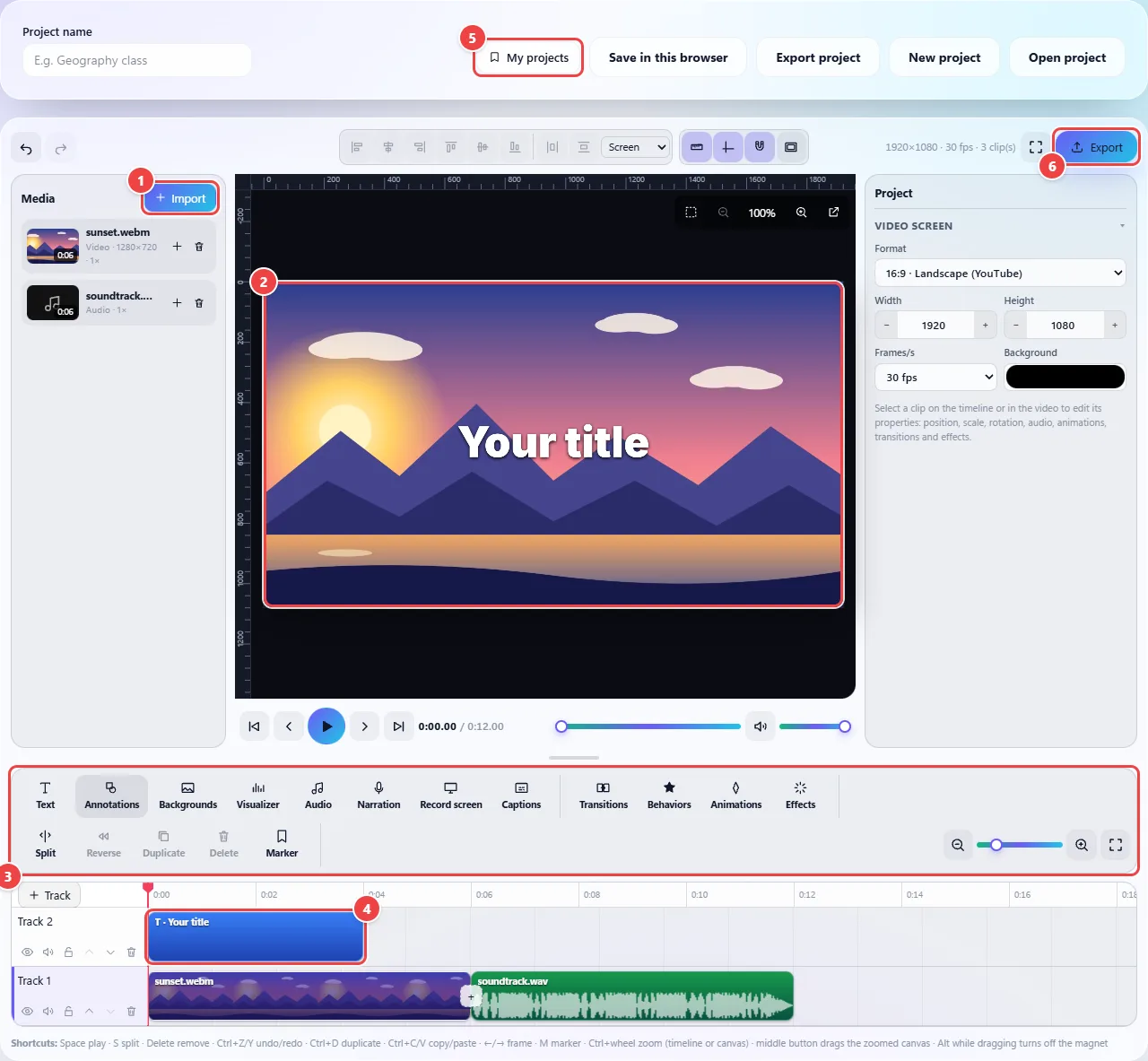
The timeline has several tracks (video, image, text, audio, backgrounds, 3D models) that overlap, as in desktop editors, and the top track stays in front. Edits do not change the original files: the project keeps the list of what to show, when and with which effects.
On export, the browser combines the tracks frame by frame and encodes the result as MP4 or WebM, using the device’s own video features (and the graphics card, when possible). That is why the time depends on the size of the project and the power of the machine. If the device has no encoder, the editor records the video in real time.
3D models are drawn on every frame with WebGL (three.js) and animated backgrounds are computed as a function of time; the preview and the export use the same drawing code, so the exported file is what you saw on screen.
Everything runs in the browser and your media files are not sent to WebFaz. The exception is the optional “Generate automatic captions” button, which sends the timeline audio to the speech recognition service. The projects in “My projects” stay in the browser’s storage (IndexedDB), together with the media.
Read the full guide: real-world use cases, tips and limits →
Privacy: It works locally by default. Only if you turn on the AI feature is the timeline audio (only when you click "Generate automatic captions") sent to Groq (Whisper Large-v3). The editor runs entirely in the browser and your videos are never uploaded. The only exception is the optional "Generate automatic captions" button (Captions panel): it mixes the timeline audio and sends it, in 30 s pieces, to the speech recognition service (Groq/Whisper) to create the captions. WebFaz does not store the audio. Learn more.