Print an image on several A4 sheets
Choose the size in centimeters or the number of sheets. Check the layout and download a PDF with guides to cut and join, without installing anything.
Choose your image
Your image stays on your device. No file is uploaded.
Set the size
A 10 cm ruler to check the print before wasting paper.
Check and print
Open an image or try the example to see the split into sheets.
In the print dialog: use the chosen paper, 100% scale or “Actual size”, without “Fit to page”. The map is an extra page and is not part of the poster. On the sheets, trim the outer margins; use the dashed lines to line up the overlap.
From file to poster
It receives images from WebFaz Image Extractor through the “Send to…” menu, without downloading and selecting the file again. It also accepts images created in the other apps that offer that menu.
Assemble without guessing
The PDF can start with a numbered map. The sheets keep their row and column, even when you download only one part to reprint.
Check before printing
Do the 10 cm ruler test and check the real size. The margin depends on your printer; making a photo bigger does not add detail.
About Poster Print
Splits an image into A4, A3 or Letter sheets so you can build a large poster with an ordinary printer. Choose an exact grid of sheets or a width in centimeters, check the layout and download the PDF.
How to use it
- Open, drag or paste an image, or use the example.
- Set the width in centimeters or the number of rows and columns. Choose the paper and the orientation.
- Check the size, the resolution and the sheets. Click the preview to remove the parts you do not need to reprint.
- Generate the PDF and print at actual size (100%), without “fit to page”. Trim the margins and join the sheets using the overlap.
Limits and cautions
- One image per poster, up to 40 MB, 40 megapixels and 16,384 pixels per side; up to 100 sheets and 300 cm per side.
- The PDF is rasterized at up to 150 PPI. The image does not gain detail when enlarged; SVG is also rasterized and GIF uses a single still frame.
- The grid respects the exact number of rows and columns: the image is centered, keeping its proportion, with blank space when needed.
- Physical printing depends on the paper, the margin and the printer settings. Use the A4 test with the 10 cm ruler.
- The map is an extra page. Dashed guides appear over the image in the joining areas; turn the marks off if you want output without guides.
The tool in one image
The click points are numbered. Tap the image to see it at full size. The other screens, step by step, are in the “How it works” guide.
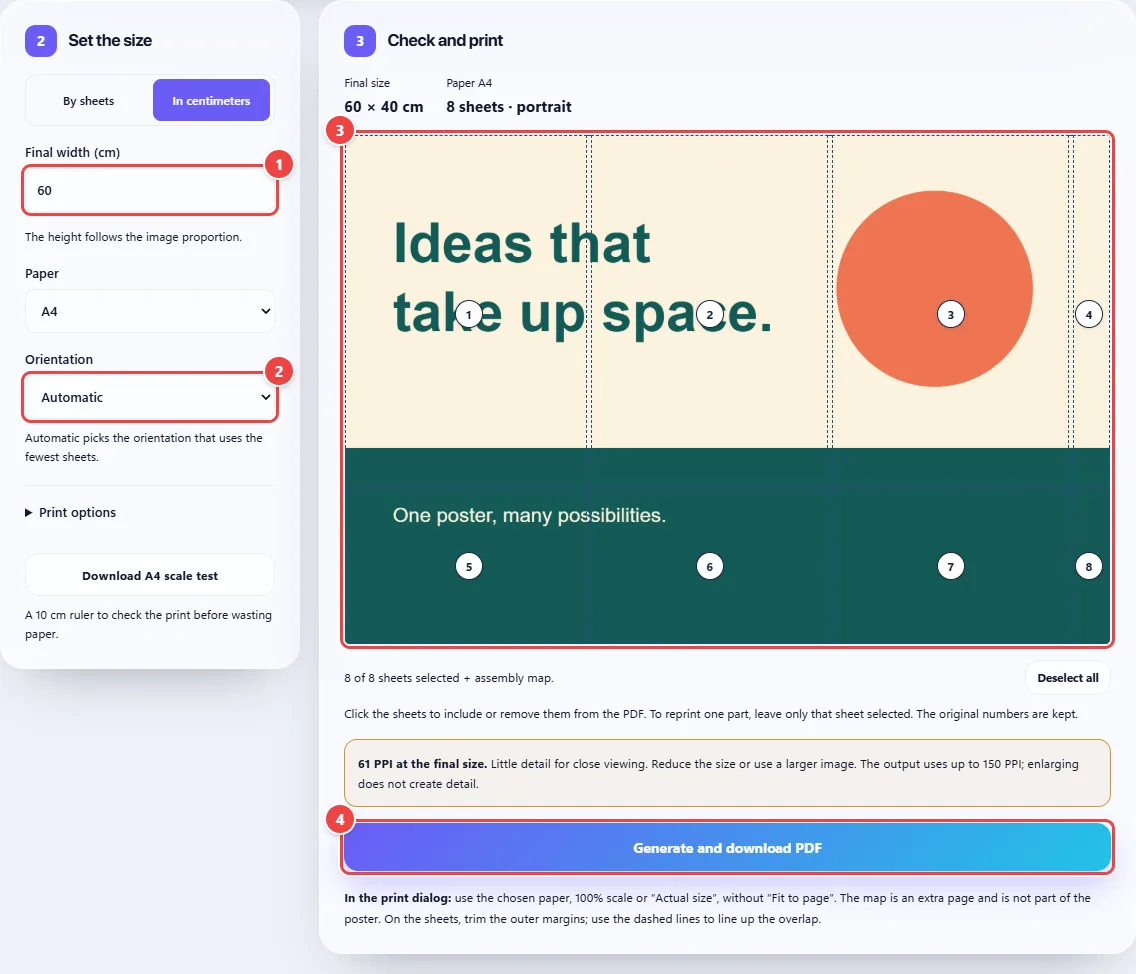
- Point 1: Enter the width in centimeters; the height follows the proportion.
- Point 2: Automatic picks the orientation that needs the least paper.
- Point 3: Each number identifies one sheet of the poster.
- Point 4: Download the PDF to print at 100% scale.
Read the full guide: real-world use cases, tips and limits →
Privacy: This tool runs entirely in your browser: your files and data are not sent to any WebFaz server. Learn more.
Frequently asked questions
- How do I print an image on several A4 sheets?
- Open the image, choose A4, enter the final size and download the PDF. Each page, except the optional map, is one part of the poster.
- Do I need to raise the DPI of the image?
- Changing only the DPI number does not create detail. The app shows the pixels per inch at the final size and limits the output to 150 PPI.
- How do I reprint just one sheet?
- Deselect all in the preview and select the part you want. The original numbering is kept. Turn the map off in the options if you do not need it again.
- Do my images leave the device?
- No. Reading, cropping and the PDF are all done in the browser. Sending between apps also stays in this page’s memory.
- Can I send an image extracted from a document?
- Yes. In Image Extraction, use Print on several sheets on the image card. It arrives ready to configure, without downloading and opening it again.