Between subtitle formats
SRT, VTT and ASS
Convert the subtitles to the format your player or site accepts.
Local by default. Only if you turn on AI is the text of the lines, only when you click Translate subtitle sent to Groq. Learn more
Extract from videos and ZIPs, watch and fix your subtitles in the player, convert formats and choose another language with the optional translation.
JSON: array of objects with start and end in seconds and text with the line. TXT and Markdown: each non-empty line becomes a block.
Video and editing stay on the device. Review text and times and apply the corrections before sending.
0 of 0 lines
Open a subtitle or use Add line to create from scratch.
Warnings help review long lines, fast reading, more than two lines, durations and overlaps. They are adjustable references, do not block export and may be intentional in dialogue.
Choose the output language and click Translate subtitle. The times and the division of the lines are preserved.
Optional AI translation: only the text of the lines is sent to Groq through the WebFaz server when you click Translate subtitle. The video and the ZIP are not sent. Up to 100 thousand characters per translation; style markup is removed. Review the translation before publishing.
Each task has its own page, with the step by step, tips and the limits of what it does.
SRT, VTT and ASS
Convert the subtitles to the format your player or site accepts.
TXT, Markdown and script
Turn the subtitles into text, an article or a script, or create subtitles from a text.
MP4, MKV, WebM and translation
Extract the embedded subtitles from a video or translate into another language.
Delay or advance the lines, or fix the text and times while watching the video.
1. Export the subtitles from your editor or from YouTube and open the file, or paste the content. You can also open a ZIP, choose a subtitle or video inside it and select the track or language to extract. Extraction accepts text tracks in MP4/MOV and MKV/WebM; image tracks and subtitles burned into the picture require OCR. The app does not download subtitles from links nor transcribe the audio.
2. Choose the output format. SRT and VTT preserve the lines’ intervals; JSON makes it easy to use the blocks in other systems. TXT and Markdown remove time codes and style markup by default.
3. For an article, choose Markdown and set the title. For a script, choose Script: each line gets a numbered block, with optional times. The conversion keeps the original text; review the language before publishing.
4. For ASS or SSA, configure font, size, color, position and the video’s resolution. Import extracts lines and times, discarding the original’s styles, effects, drawings and comments. Export uses a single basic style.
5. Open a reference video in the player to review the lines. Click a line to jump to the passage, adjust text or times and click Apply corrections before downloading. You can also fix the translated output without changing the original input. To translate, choose the output language and click Translate subtitle. Only the lines are sent to the AI service. The times and the original input are preserved. Review the translation, choose the format and copy or download the result. When going back from clean text to subtitles, the times are estimated. VTT-specific styles and position settings are not preserved in the conversion.
6. To create subtitles from scratch, use Add line: the start uses the video’s current time or the end of the selected line. Fill in the text and review the end; Delete line removes the block and Undo restores the deletion. Use the search and the warnings filter to find lines that need review. Check duration, characters per second and line breaks; adjust the limits under Reading review. Split at the cursor, merge with the next line or adjust the breaks, using Undo and Redo when needed. To listen carefully, reduce the speed and repeat the selected line. Apply or discard the draft before downloading, translating or sending to another app.
Extracts, edits, converts and translates subtitles: SRT, VTT, ASS, SSA and JSON, with time adjustment and a preview alongside the video.
More than changing the file extension: it goes and gets the subtitle wherever it is, lets you fix it while watching the video and even translates. These are the features that stand out:
Open a video (MP4/MOV or MKV/WebM, up to 2 GB) or a ZIP package (up to 256 MB) and the app looks for the embedded subtitles. Image-based (bitmap) subtitles cannot be extracted as text.
Load the video alongside and review each line in the player: the text, the start and the end (with buttons that set the video’s current time) and the actions to add, split, merge and delete lines. There is a search across lines and a filter that shows only the lines with warnings. The video stays on your device.
Each line shows its duration and characters per second, and the app warns when a line goes over the limit (42 characters per line and 20 per second, adjustable).
Review the subtitles of a video editor project and return the lines to it. If the video has no subtitle, Transcribe the video’s audio takes the video to the Transcription app.
Choose the original language (or let it detect) and the output one. The times and the division of the lines are preserved. It is optional: only the text of the lines (up to 100 thousand characters) is sent to the translation service, when you click Translate subtitle. Review the result.
Shift all lines, in seconds, to fix an early or late subtitle, and set the duration of each block when the text comes without times (TXT and Markdown).
SRT, VTT, ASS, SSA, JSON, clean TXT, Markdown and Script, with automatic detection of the input format.
Subtitles, ZIPs and videos are read by the browser. The only exception is AI translation, which only happens if you ask for it.
You have an English video with an SRT subtitle, but the text shows up 2 seconds early. You open the video and the file in the tool, adjust the time, fix two lines and convert to VTT to use on the website. If you want, you translate the text into Portuguese with optional AI and review it before downloading.
Os pontos de clique estão numerados. Toque na imagem para vê-la em tamanho original. As demais telas, passo a passo, estão no guia “Como funciona”.
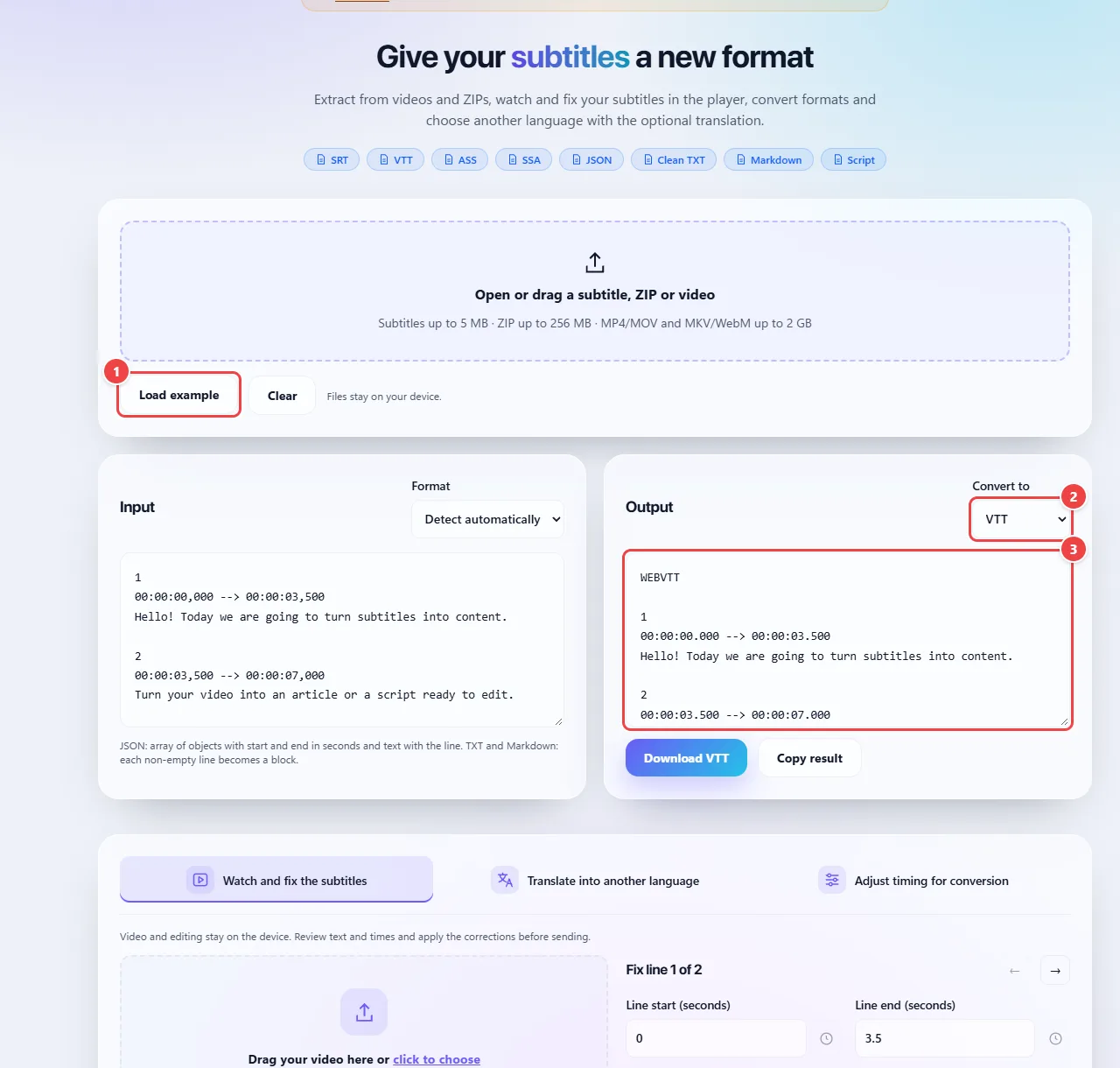
SRT, VTT, ASS and SSA are text formats with times. SRT is the simplest and most universal; VTT is the web standard; ASS and SSA allow advanced styles, such as colors, positions and effects. Converting to a simpler format can lose those styles.
Extraction, editing and conversion run in the browser, with the preview alongside the video. Only AI translation is optional: when you click translate, only the text of the lines is sent to the WebFaz server and to Groq; videos and ZIP files are not sent.
Subtitles recorded as images (bitmap), common on some DVDs and Blu-rays, are not text and cannot be extracted as such.
Read the full guide: real-world use cases, tips and limits →
Privacy: It works locally by default. Only if you turn on the AI feature is the text of the lines, only when you click Translate subtitle sent to Groq. Conversion and extraction run in the browser. The optional translation sends only text to the WebFaz server and to Groq; videos and ZIP files are not sent. Learn more.